> ## Documentation Index
> Fetch the complete documentation index at: https://docs.appminis.io/llms.txt
> Use this file to discover all available pages before exploring further.
# Categories
> Hướng dẫn cài đặt component Danh mục: chọn bố cục, quản lý dữ liệu (thêm/sửa/xóa), và tùy chỉnh phong cách hiển thị.
### **3.3.2. Categories**
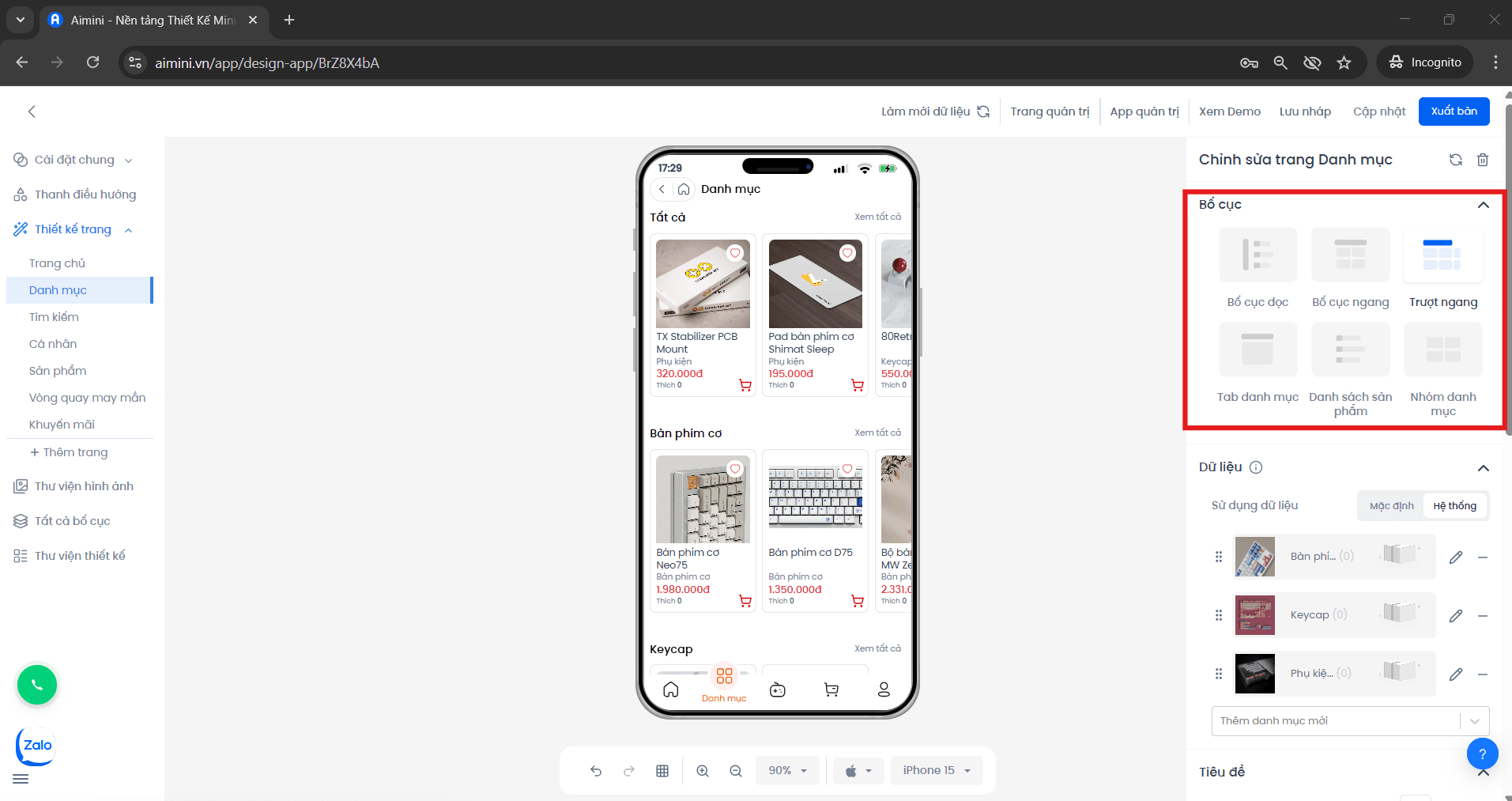
**Bố cục**\
Người dùng có thể lựa chọn các bố cục hiển thị danh mục, bao gồm: Bố cục mặc định, Bố cục dọc, Bố cục ngang, Trượt ngang, Tab danh mục, Danh sách sản phẩm, hoặc Nhóm danh mục.
 **Dữ liệu**
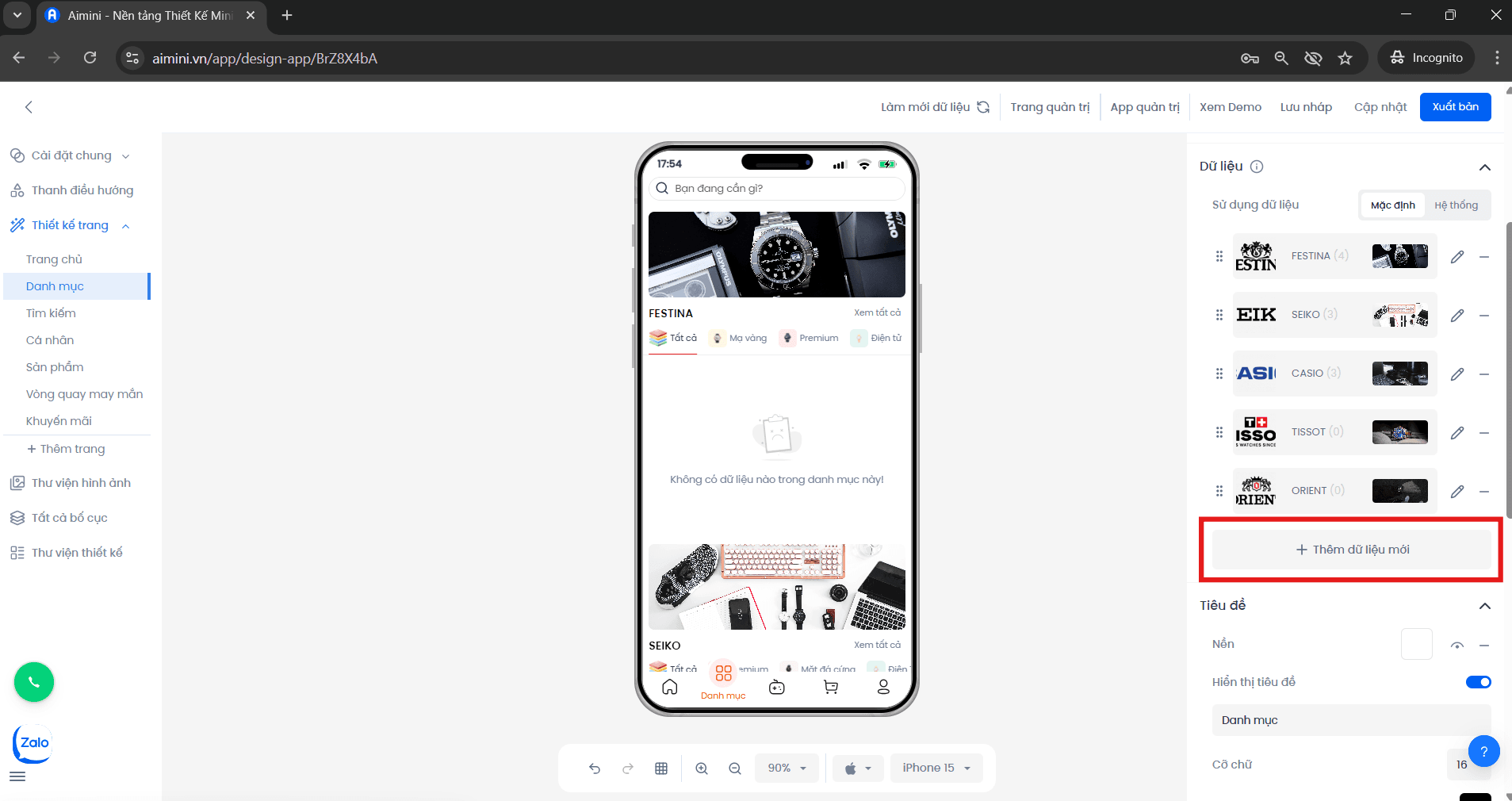
**Thêm dữ liệu mới**
Người dùng nhấn vào nút **"Thêm dữ liệu mới"** để bắt đầu thêm danh mục mới.
**Dữ liệu**
**Thêm dữ liệu mới**
Người dùng nhấn vào nút **"Thêm dữ liệu mới"** để bắt đầu thêm danh mục mới.
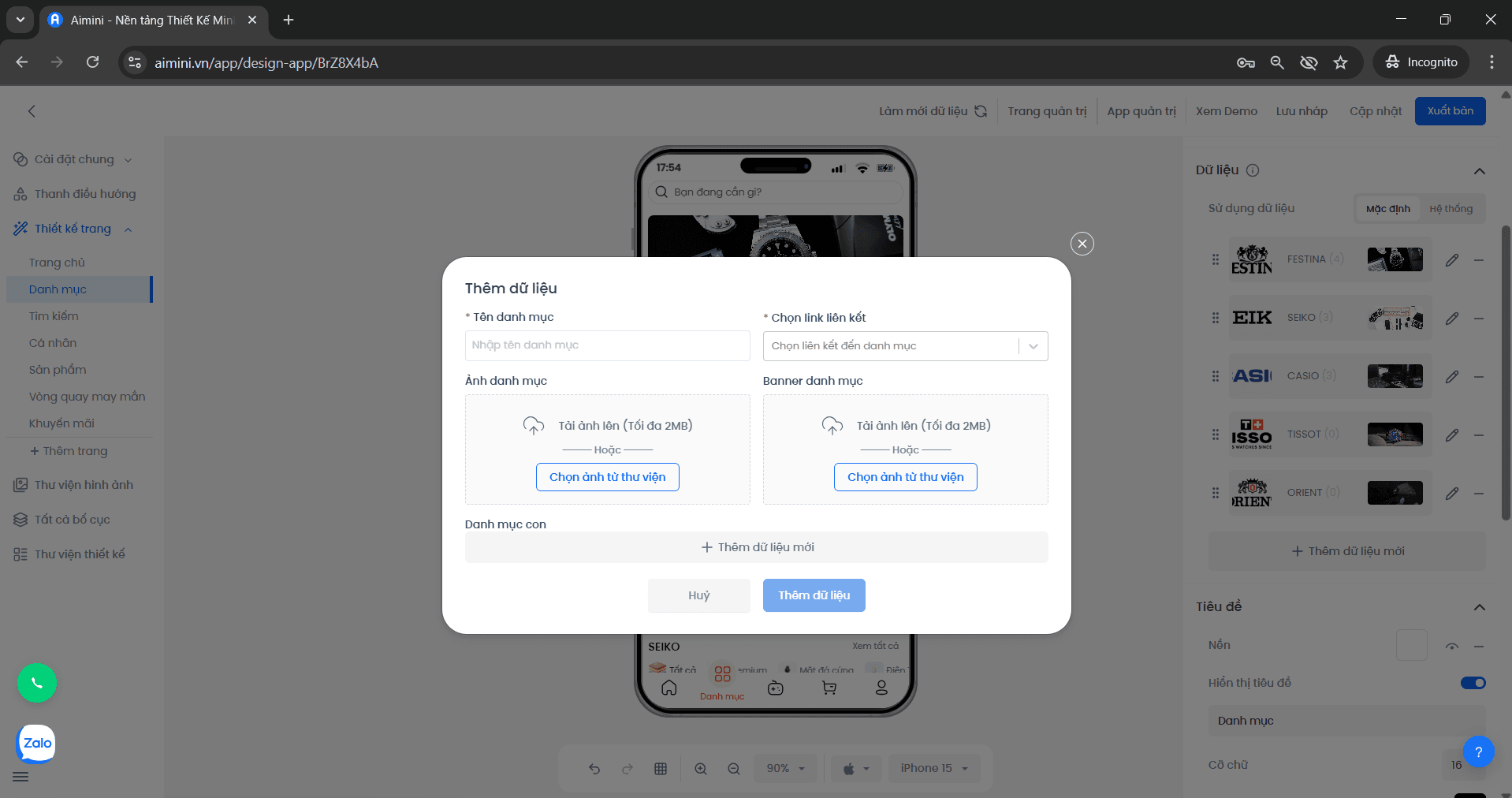
 * Nhập **tên danh mục**
* Nhấn **“Tải ảnh lên hoặc chọn ảnh từ thư viện”** để thêm hình ảnh cho danh mục và banner danh mục
* Chọn **đường dẫn đến trang khác** nếu đây là danh mục liên kết đến trang cụ thể (người dùng sẽ được điều hướng đến trang đó khi nhấn vào ảnh)
* Hoặc chọn **đường dẫn đến danh mục sản phẩm** nếu đây là danh mục chứa các sản phẩm (người dùng sẽ được điều hướng đến trang danh mục sản phẩm tương ứng)
* Nhập **tên danh mục**
* Nhấn **“Tải ảnh lên hoặc chọn ảnh từ thư viện”** để thêm hình ảnh cho danh mục và banner danh mục
* Chọn **đường dẫn đến trang khác** nếu đây là danh mục liên kết đến trang cụ thể (người dùng sẽ được điều hướng đến trang đó khi nhấn vào ảnh)
* Hoặc chọn **đường dẫn đến danh mục sản phẩm** nếu đây là danh mục chứa các sản phẩm (người dùng sẽ được điều hướng đến trang danh mục sản phẩm tương ứng)
 Người dùng nhấn **“Thêm dữ liệu”** để hoàn tất việc thêm danh mục và banner danh mục,\
hoặc nhấn **“Hủy bỏ”** để hủy thao tác.
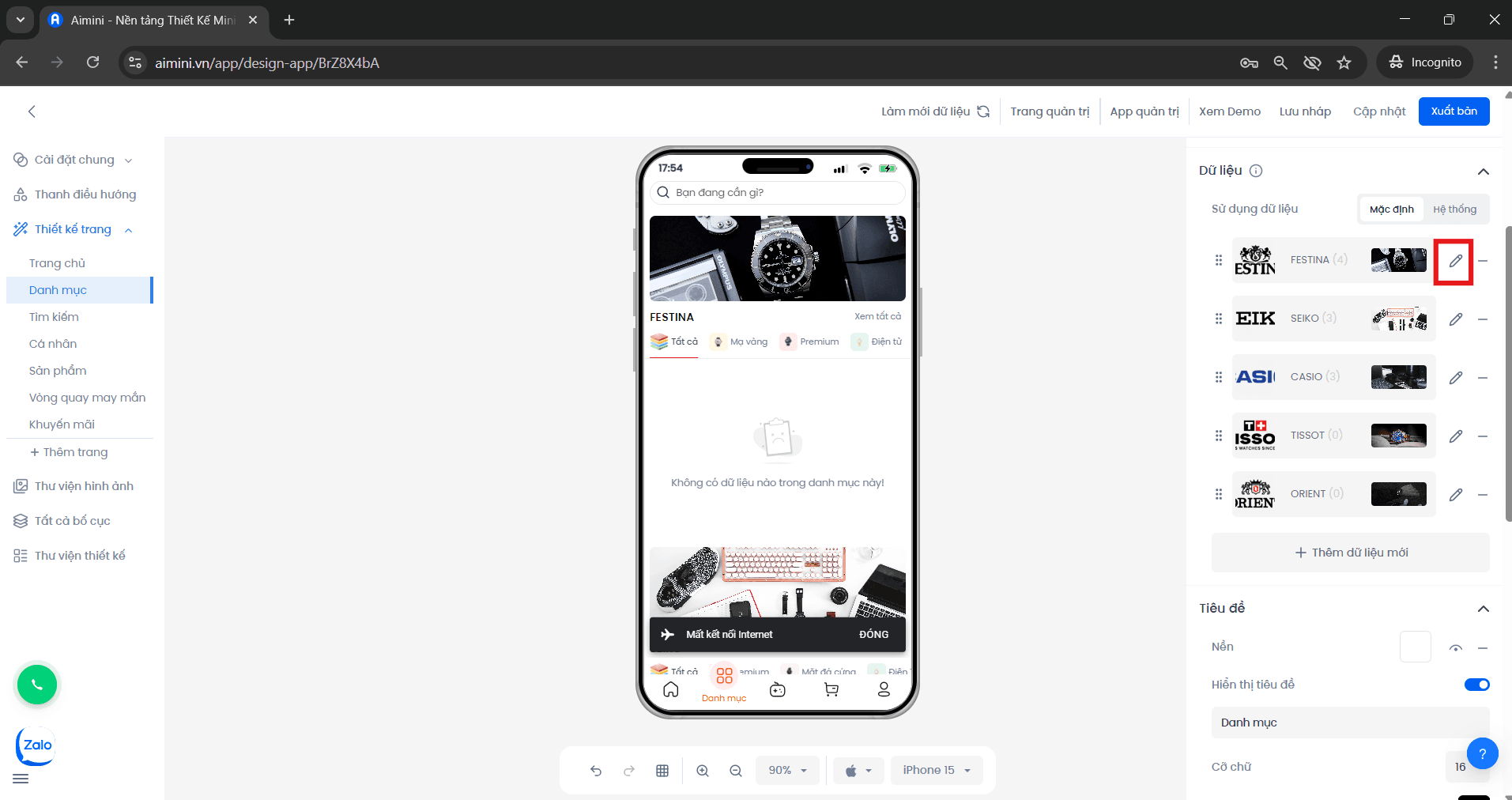
**Chỉnh sửa:**
Người dùng nhấn vào nút để mở trang chỉnh sửa danh mục.
Người dùng nhấn **“Thêm dữ liệu”** để hoàn tất việc thêm danh mục và banner danh mục,\
hoặc nhấn **“Hủy bỏ”** để hủy thao tác.
**Chỉnh sửa:**
Người dùng nhấn vào nút để mở trang chỉnh sửa danh mục.
 * Nhập **tên danh mục**
* Nhấn **“Tải ảnh lên hoặc chọn ảnh từ thư viện”** để thay đổi hình ảnh danh mục và banner danh mục
* Chọn **đường dẫn đến trang khác** nếu đây là danh mục liên kết đến trang cụ thể (người dùng sẽ được điều hướng đến trang đó khi nhấn vào ảnh danh mục)
* Hoặc chọn **đường dẫn đến danh mục sản phẩm** nếu đây là danh mục chứa các danh mục sản phẩm (người dùng sẽ được điều hướng đến trang danh mục sản phẩm tương ứng)
* Nhập **tên danh mục**
* Nhấn **“Tải ảnh lên hoặc chọn ảnh từ thư viện”** để thay đổi hình ảnh danh mục và banner danh mục
* Chọn **đường dẫn đến trang khác** nếu đây là danh mục liên kết đến trang cụ thể (người dùng sẽ được điều hướng đến trang đó khi nhấn vào ảnh danh mục)
* Hoặc chọn **đường dẫn đến danh mục sản phẩm** nếu đây là danh mục chứa các danh mục sản phẩm (người dùng sẽ được điều hướng đến trang danh mục sản phẩm tương ứng)
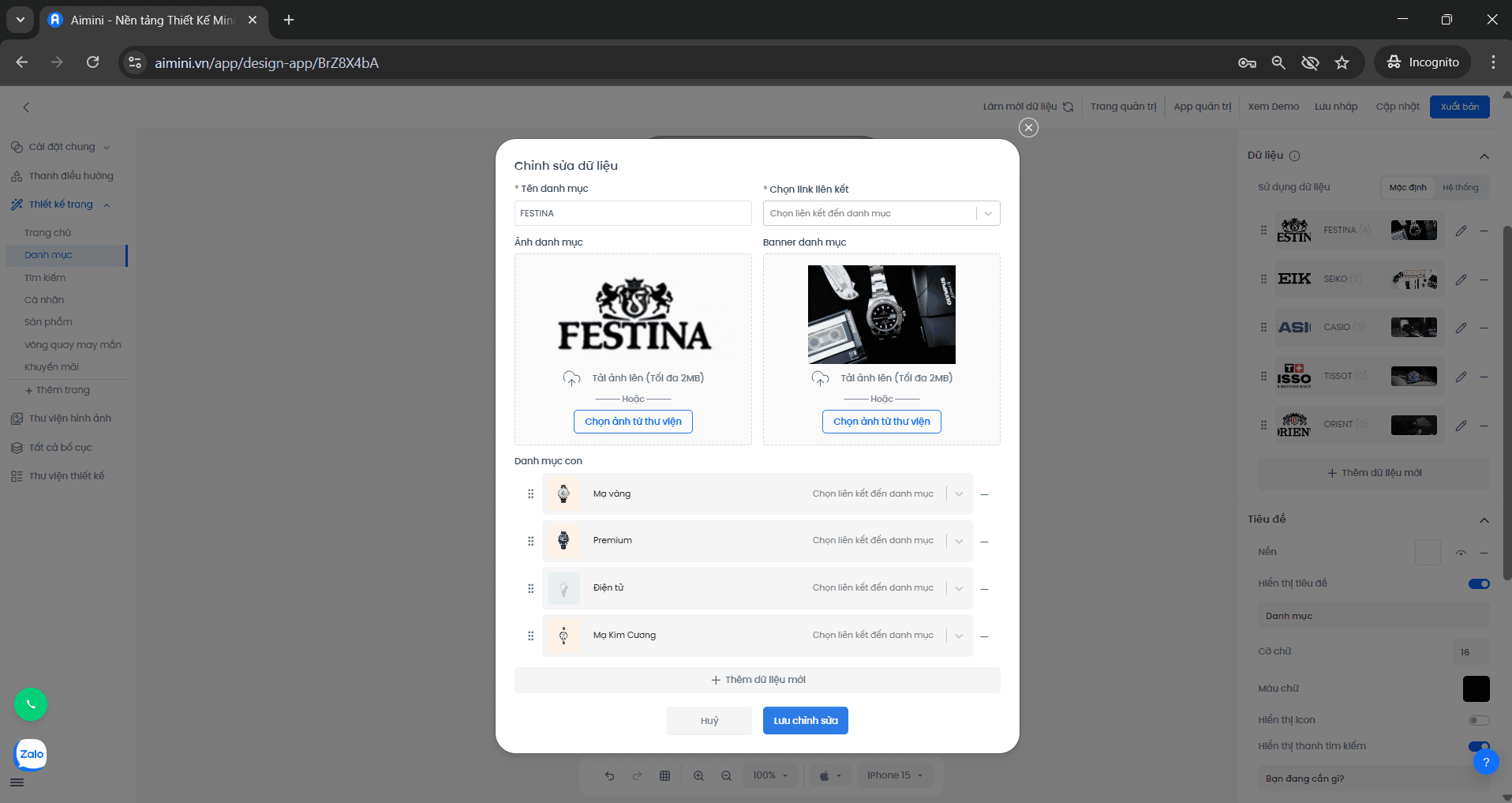 Người dùng nhấn **“Lưu chỉnh sửa”** để hoàn tất cập nhật danh mục,\
hoặc nhấn **“Hủy bỏ”** nếu không muốn lưu thay đổi.
**Xóa:**
Người dùng nhấn vào nút để xóa danh mục khỏi hệ thống.
Người dùng nhấn **“Lưu chỉnh sửa”** để hoàn tất cập nhật danh mục,\
hoặc nhấn **“Hủy bỏ”** nếu không muốn lưu thay đổi.
**Xóa:**
Người dùng nhấn vào nút để xóa danh mục khỏi hệ thống.
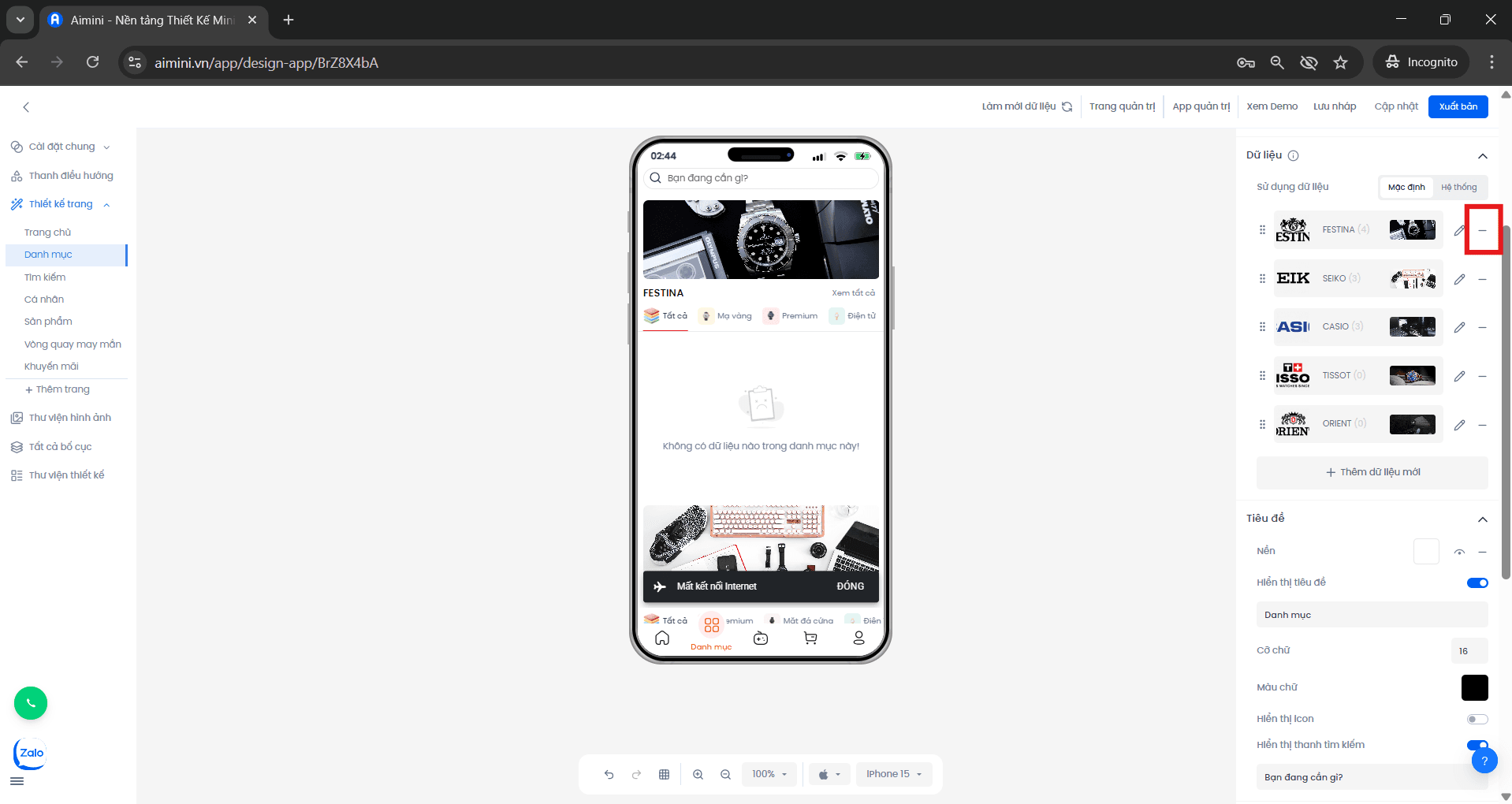 Khi hộp thoại xác nhận xuất hiện, người dùng chọn **“Xóa ngay”** để tiến hành xóa danh mục,\
hoặc chọn **“Hủy”** nếu không muốn thực hiện thao tác này.
**Tiêu đề**
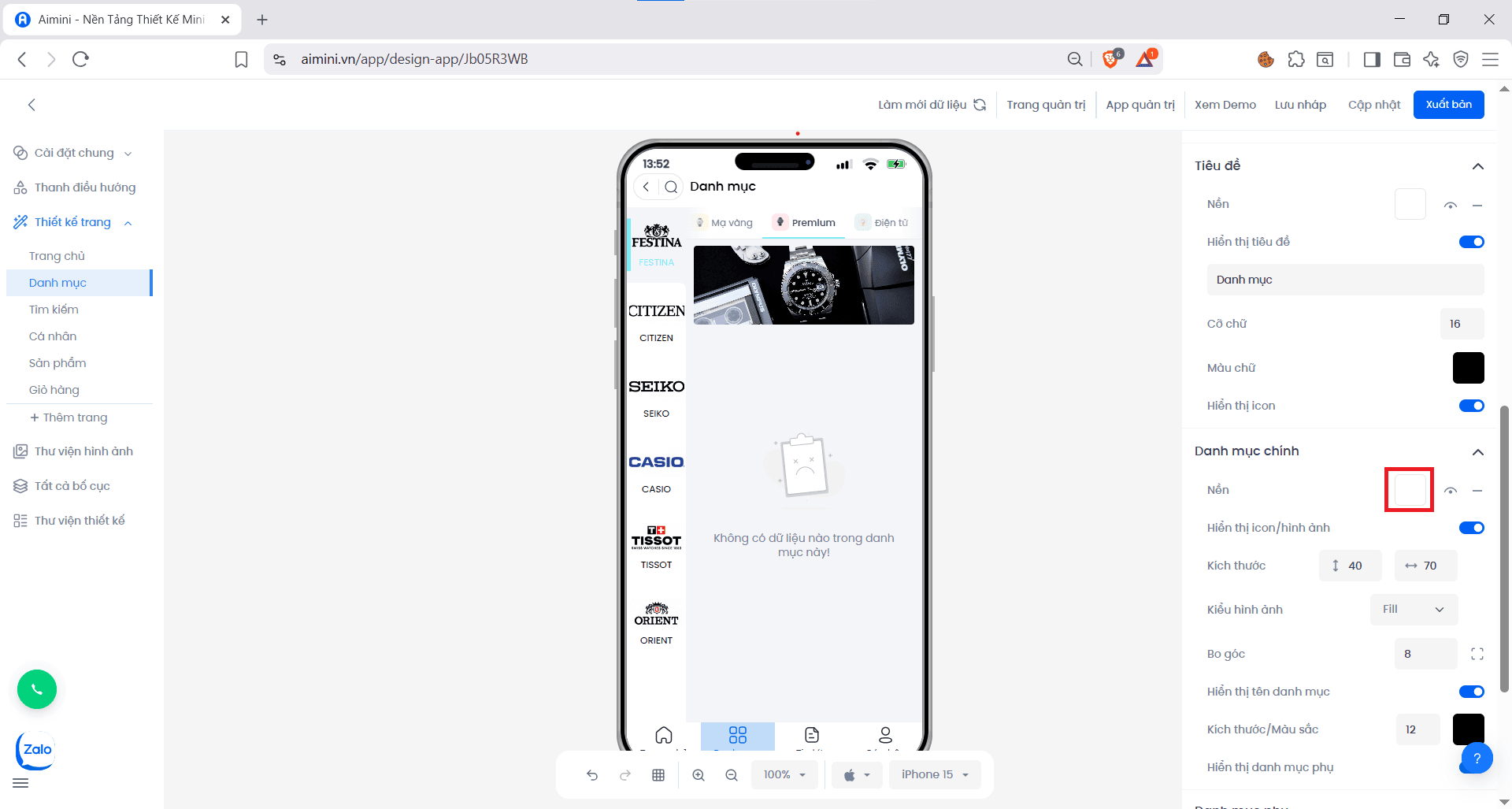
**Nền**
* Chọn màu nền cho các thẻ bằng cách nhấn ô vuông sau đó chọn màu
Khi hộp thoại xác nhận xuất hiện, người dùng chọn **“Xóa ngay”** để tiến hành xóa danh mục,\
hoặc chọn **“Hủy”** nếu không muốn thực hiện thao tác này.
**Tiêu đề**
**Nền**
* Chọn màu nền cho các thẻ bằng cách nhấn ô vuông sau đó chọn màu
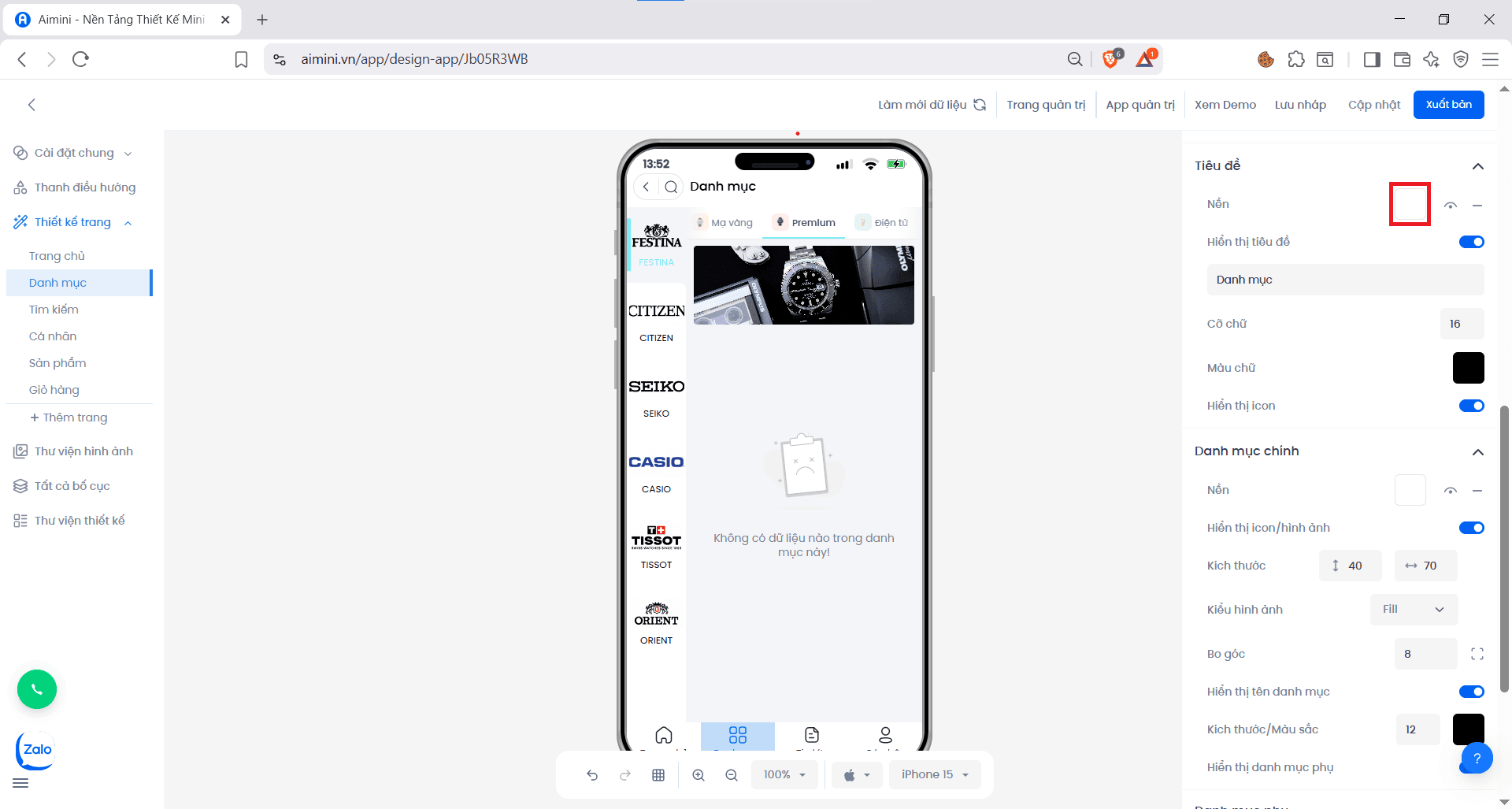 * Bật/tắt có màu nền và không có màu nền bằng cách nhấn nút
* Xóa màu nền bằng cách nhấn nút
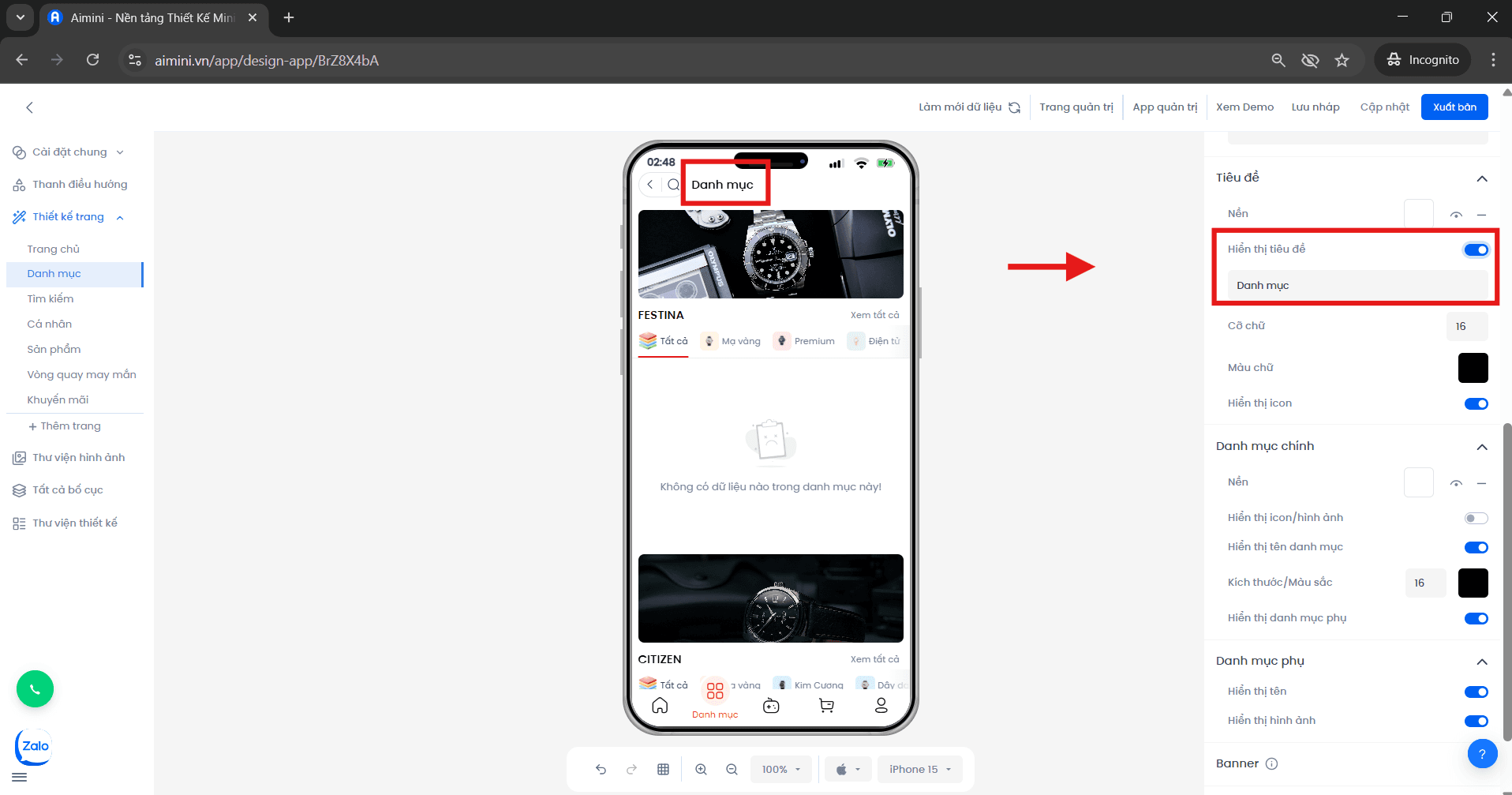
**Hiển thị tiêu đề:**
* Người dùng nhấn nút để bật/tắt có tiêu đề và không có tiêu đề, ngoài ra người dùng có thể nhập tiêu đề cho phần tử danh mục. Ví dụ, nếu tiêu đề là "Danh mục" thì phần tử danh mục sẽ như thế này
* Bật/tắt có màu nền và không có màu nền bằng cách nhấn nút
* Xóa màu nền bằng cách nhấn nút
**Hiển thị tiêu đề:**
* Người dùng nhấn nút để bật/tắt có tiêu đề và không có tiêu đề, ngoài ra người dùng có thể nhập tiêu đề cho phần tử danh mục. Ví dụ, nếu tiêu đề là "Danh mục" thì phần tử danh mục sẽ như thế này
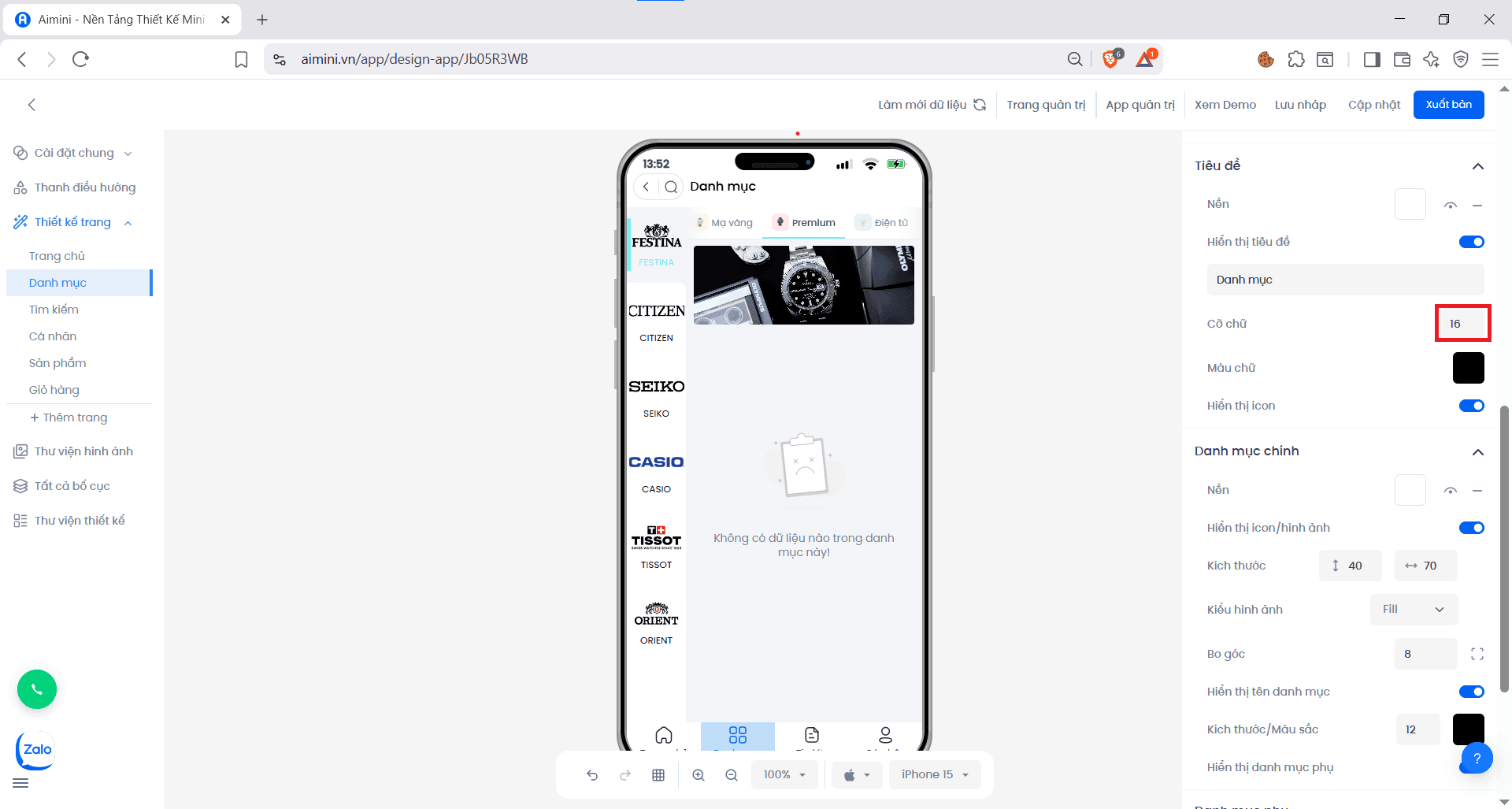
 **Cỡ chữ:**
* Người dùng có thể điều chỉnh cỡ chữ cho tiêu đề của danh mục tại
**Cỡ chữ:**
* Người dùng có thể điều chỉnh cỡ chữ cho tiêu đề của danh mục tại
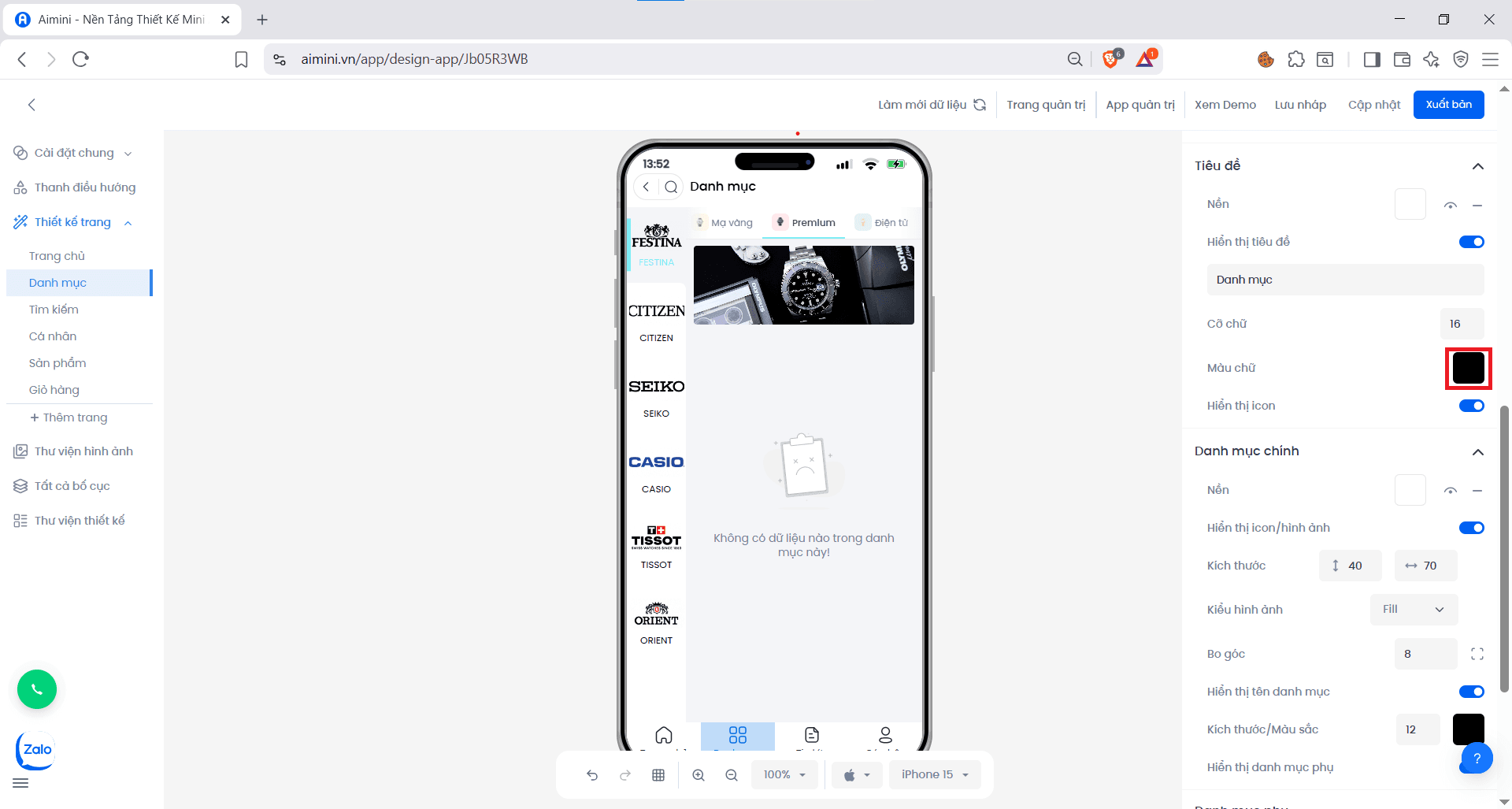
 **Màu chữ:**
* Người dùng có thể thay đổi màu chữ cho tiêu đề của danh mục tại
**Màu chữ:**
* Người dùng có thể thay đổi màu chữ cho tiêu đề của danh mục tại
 **Hiển thị icon:**
* Người dùng nhấn nút để bật/tắt có hiển thị icon và không có hiển thị icon
**Danh mục chính**
**Nền**
* Chọn màu nền cho các thẻ bằng cách nhấn ô vuông sau đó chọn màu
**Hiển thị icon:**
* Người dùng nhấn nút để bật/tắt có hiển thị icon và không có hiển thị icon
**Danh mục chính**
**Nền**
* Chọn màu nền cho các thẻ bằng cách nhấn ô vuông sau đó chọn màu
 * Nhấn biểu tượng để ẩn hoặc hiển thị hiệu ứng bóng
* Xóa màu nền bằng cách nhấn nút
**Hiển thị icon/ hình ảnh**
* Người dùng nhấn nút để bật/tắt trạng thái trạng thái có hiển thị icon/hình ảnh và không có hiển thị icon/ hình ảnh
**Hiển thị tên danh mục**
* Người dùng nhấn nút để bật/tắt trạng thái có hiển thị tên danh mục và không có hiển thị tên danh mục
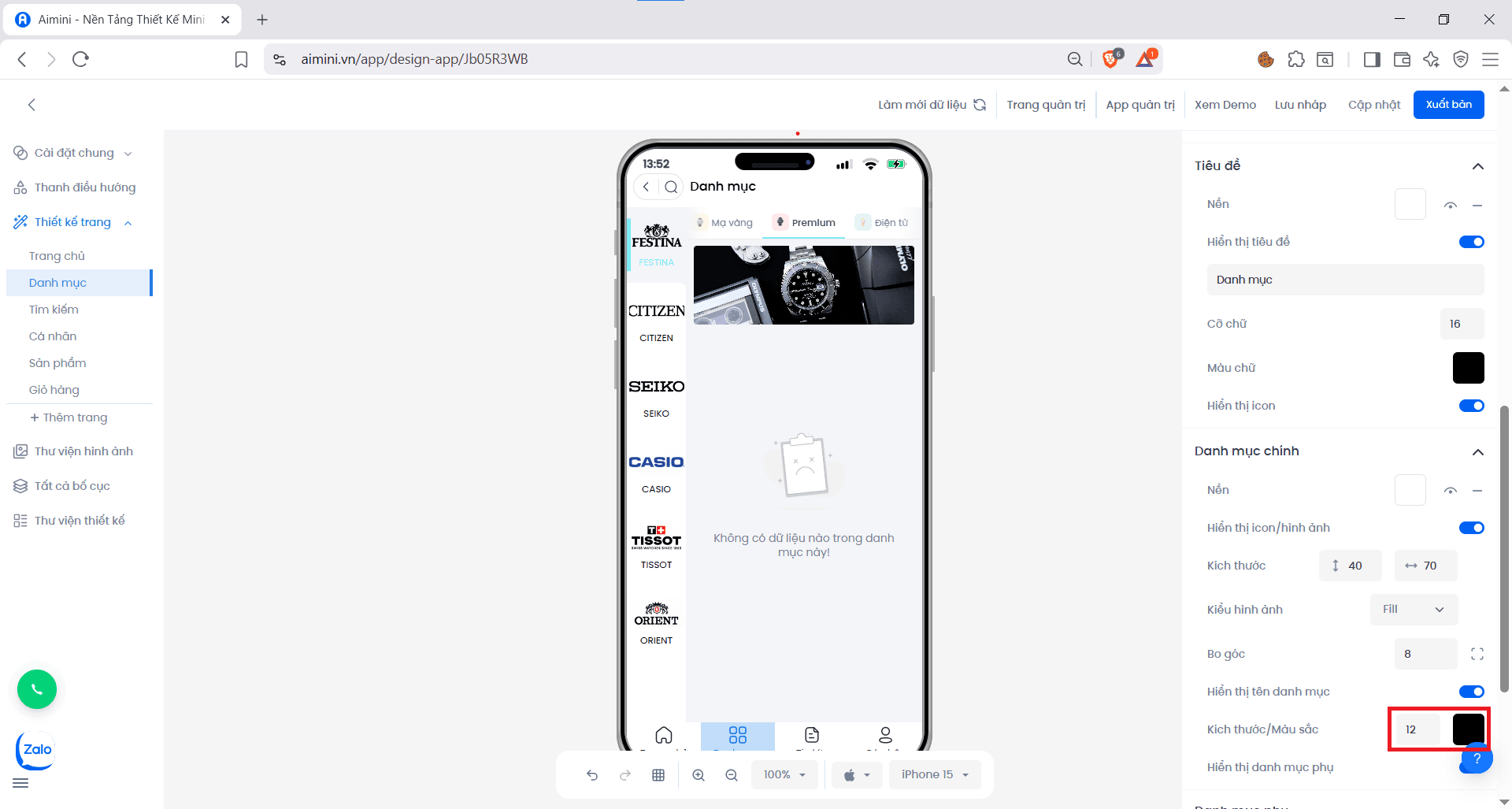
**Kích thước/ Màu sắc**
* Người dùng có thể nhập hoặc tăng/giảm kích thước danh mục và thay đổi màu sắc danh mục
* Nhấn biểu tượng để ẩn hoặc hiển thị hiệu ứng bóng
* Xóa màu nền bằng cách nhấn nút
**Hiển thị icon/ hình ảnh**
* Người dùng nhấn nút để bật/tắt trạng thái trạng thái có hiển thị icon/hình ảnh và không có hiển thị icon/ hình ảnh
**Hiển thị tên danh mục**
* Người dùng nhấn nút để bật/tắt trạng thái có hiển thị tên danh mục và không có hiển thị tên danh mục
**Kích thước/ Màu sắc**
* Người dùng có thể nhập hoặc tăng/giảm kích thước danh mục và thay đổi màu sắc danh mục
 **Hiển thị danh mục phụ**
* Người dùng nhấn nút để bật/tắt trạng thái có hiển thị danh mục phụ và không có hiển thị danh mục phụ.
**Danh mục phụ**
**Hiển thị tên**
* Người dùng nhấn nút để bật/tắt trạng thái có hiển thị tên danh mục phụ và không có hiển thị tên danh mục phụ.
**Hiển thị hình ảnh**
* Người dùng nhấn nút để bật/tắt trạng thái có hiển thị hình ảnh danh mục phụ và không có hiển thị hình ảnh danh mục phụ.
**Banner**
**Hiển thị banner**
* Người dùng nhấn nút để bật/tắt trạng thái có hiển thị banner và không có hiển thị banner.
**Chiều cao**
* Người dùng có thể chọn hoặc tăng/giảm chiều cao của banner tại
**Hiển thị danh mục phụ**
* Người dùng nhấn nút để bật/tắt trạng thái có hiển thị danh mục phụ và không có hiển thị danh mục phụ.
**Danh mục phụ**
**Hiển thị tên**
* Người dùng nhấn nút để bật/tắt trạng thái có hiển thị tên danh mục phụ và không có hiển thị tên danh mục phụ.
**Hiển thị hình ảnh**
* Người dùng nhấn nút để bật/tắt trạng thái có hiển thị hình ảnh danh mục phụ và không có hiển thị hình ảnh danh mục phụ.
**Banner**
**Hiển thị banner**
* Người dùng nhấn nút để bật/tắt trạng thái có hiển thị banner và không có hiển thị banner.
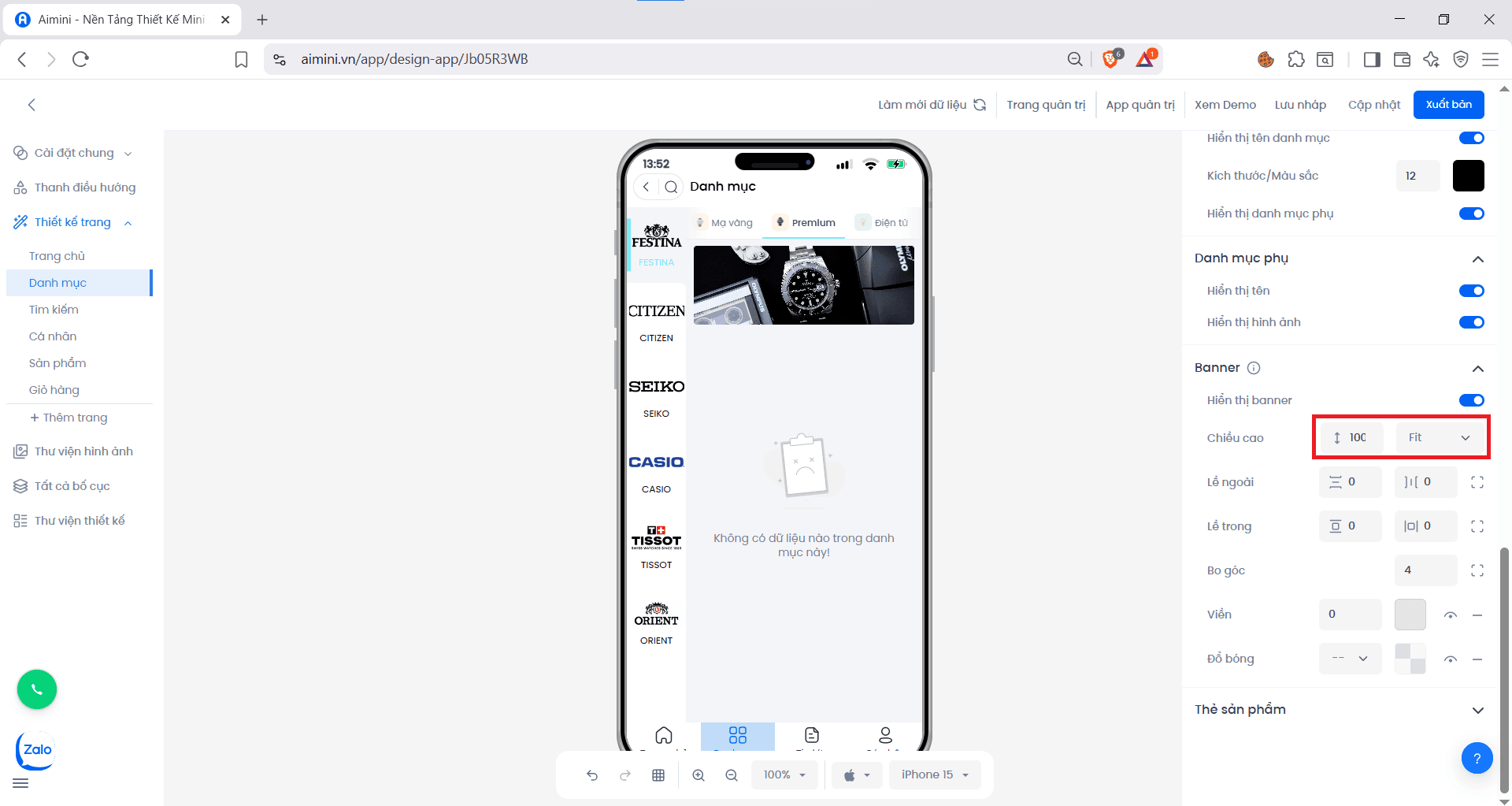
**Chiều cao**
* Người dùng có thể chọn hoặc tăng/giảm chiều cao của banner tại
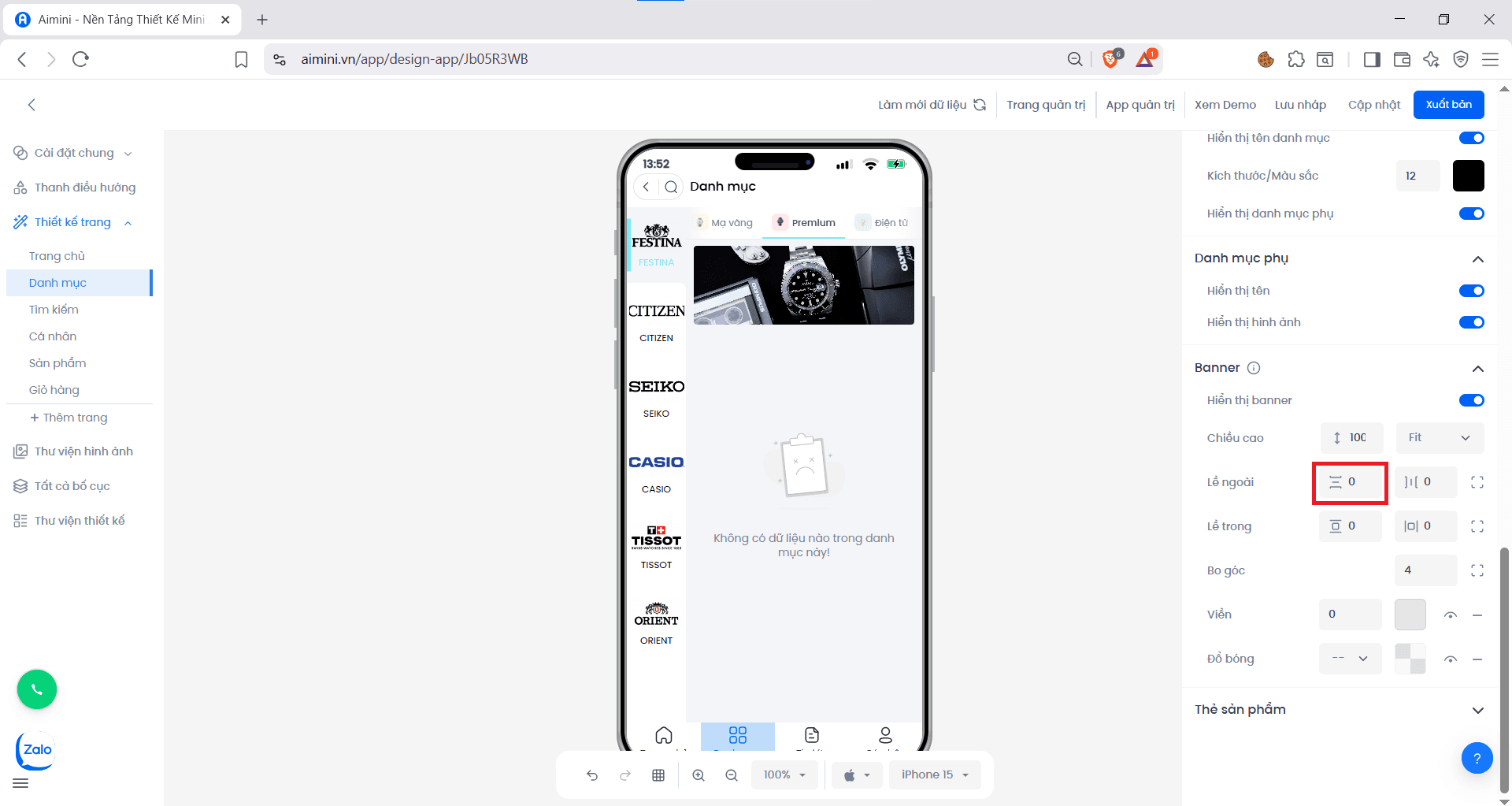
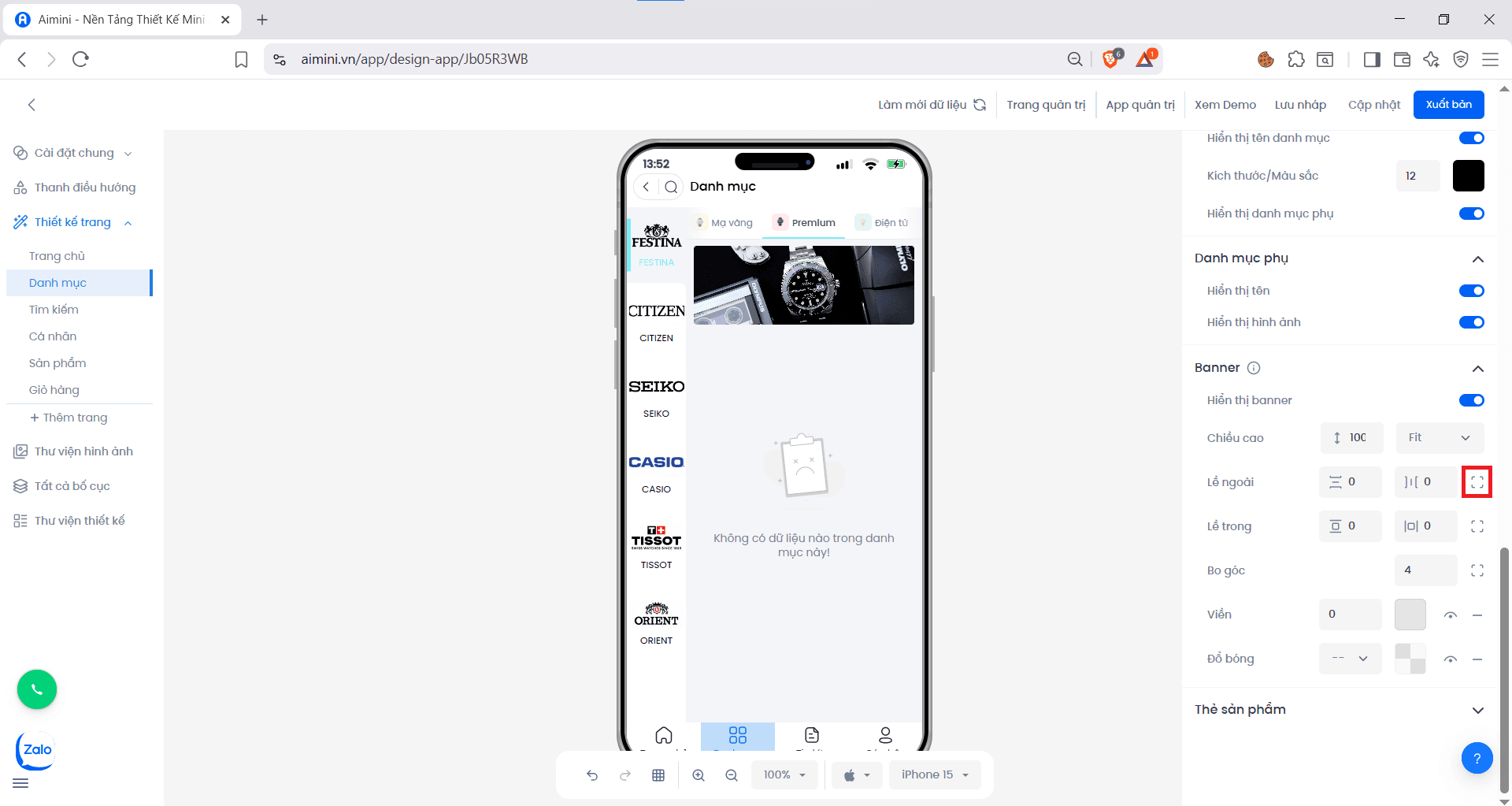
 **Lề ngoài**
* Người dùng muốn **chỉnh khoảng cách trên – dưới** giữa phần tử và các phần khác trên trang nhấn nút.
**Lề ngoài**
* Người dùng muốn **chỉnh khoảng cách trên – dưới** giữa phần tử và các phần khác trên trang nhấn nút.
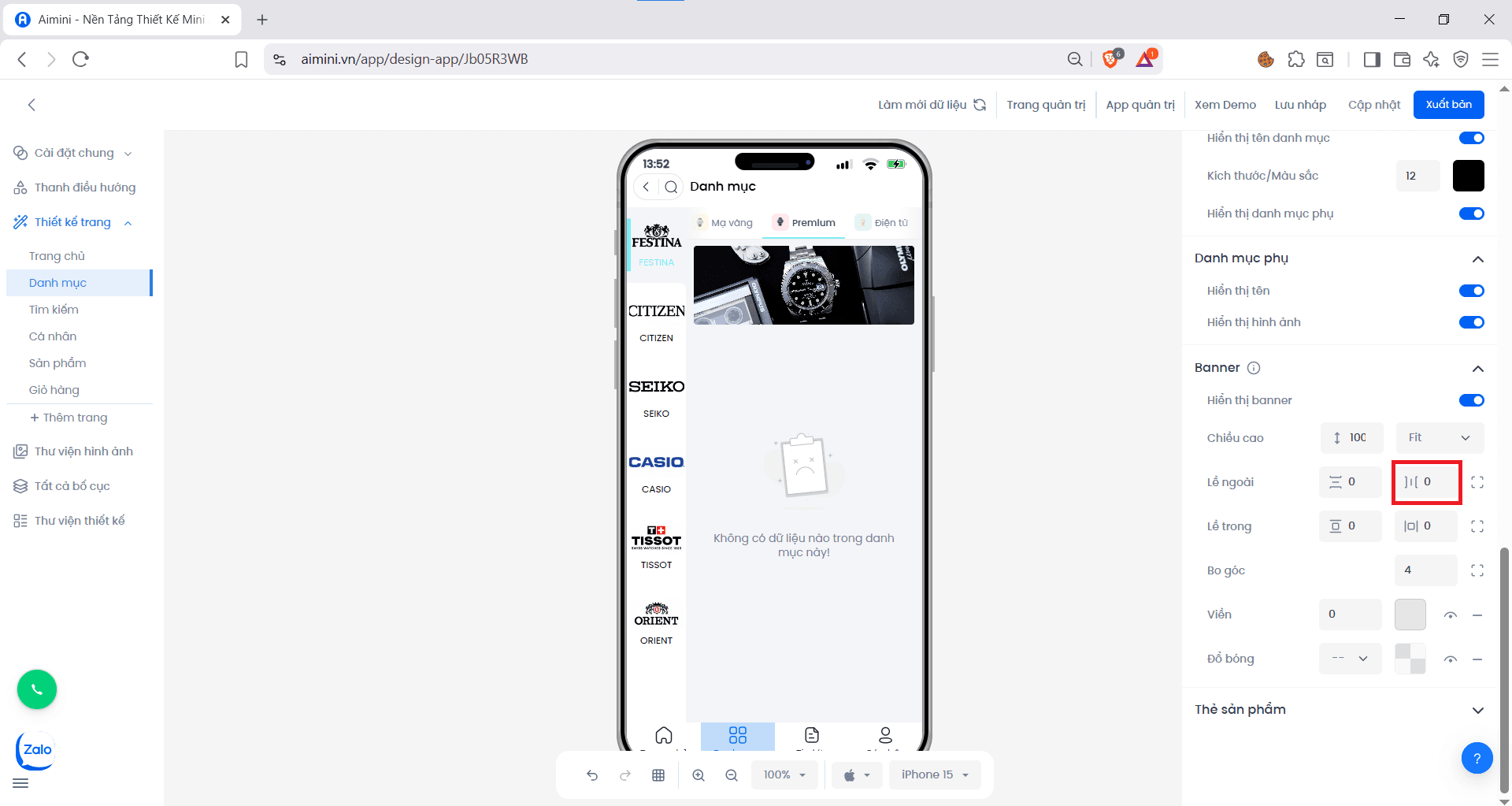
 * Người dùng muốn **chỉnh khoảng cách trái – phải** của phần tử nhấn nút.
 * Nếu muốn **chỉnh riêng từng bên trái hoặc phải** ,**chỉnh riêng lề trên hoặc lề dưới**, nhấn nút.
 **Lề trong**
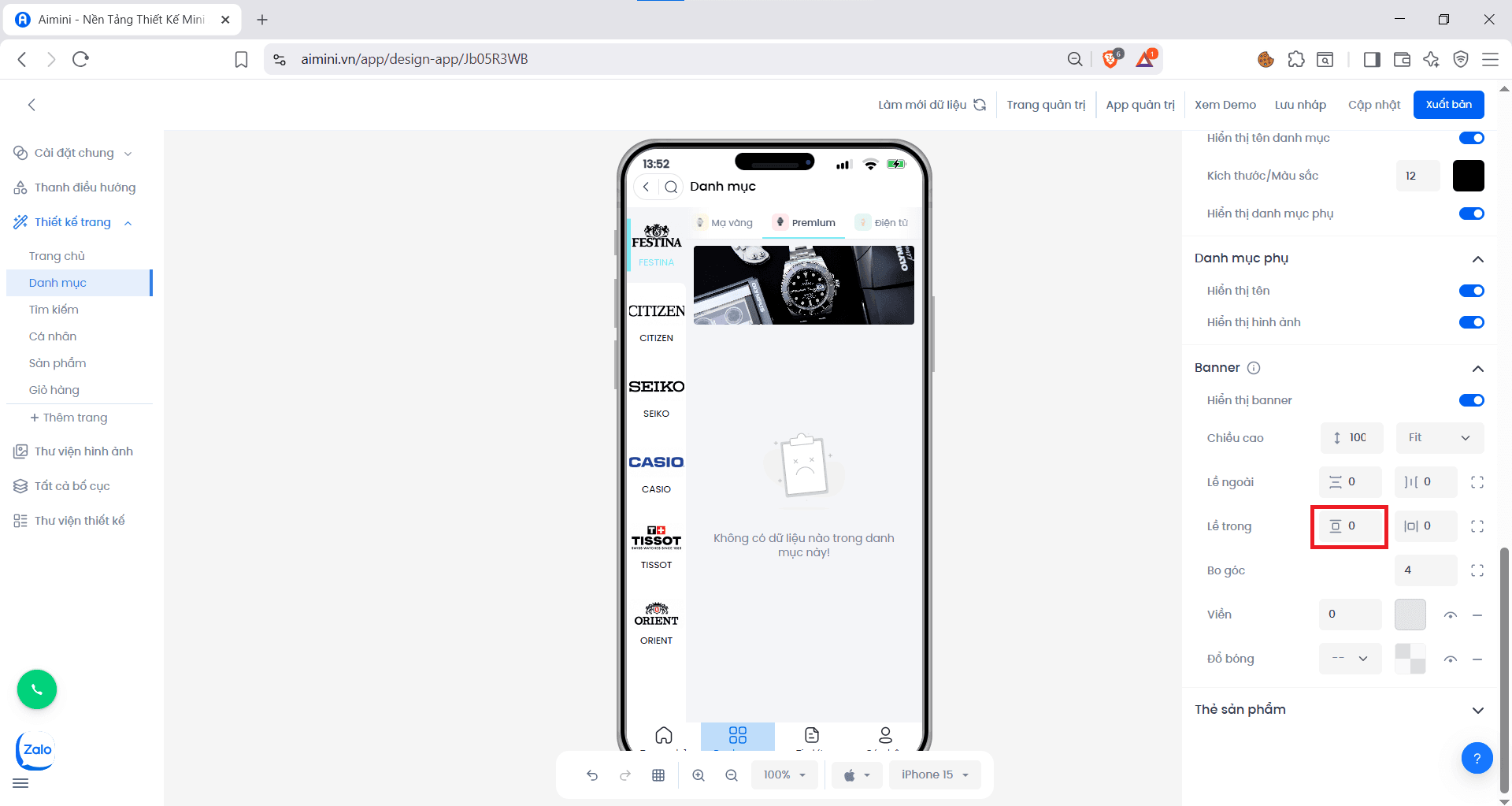
* Người dùng muốn **chỉnh khoảng cách trên – dưới** giữa nội dung bên trong phần tử và viền của phần tử nhấn nút.
**Lề trong**
* Người dùng muốn **chỉnh khoảng cách trên – dưới** giữa nội dung bên trong phần tử và viền của phần tử nhấn nút.
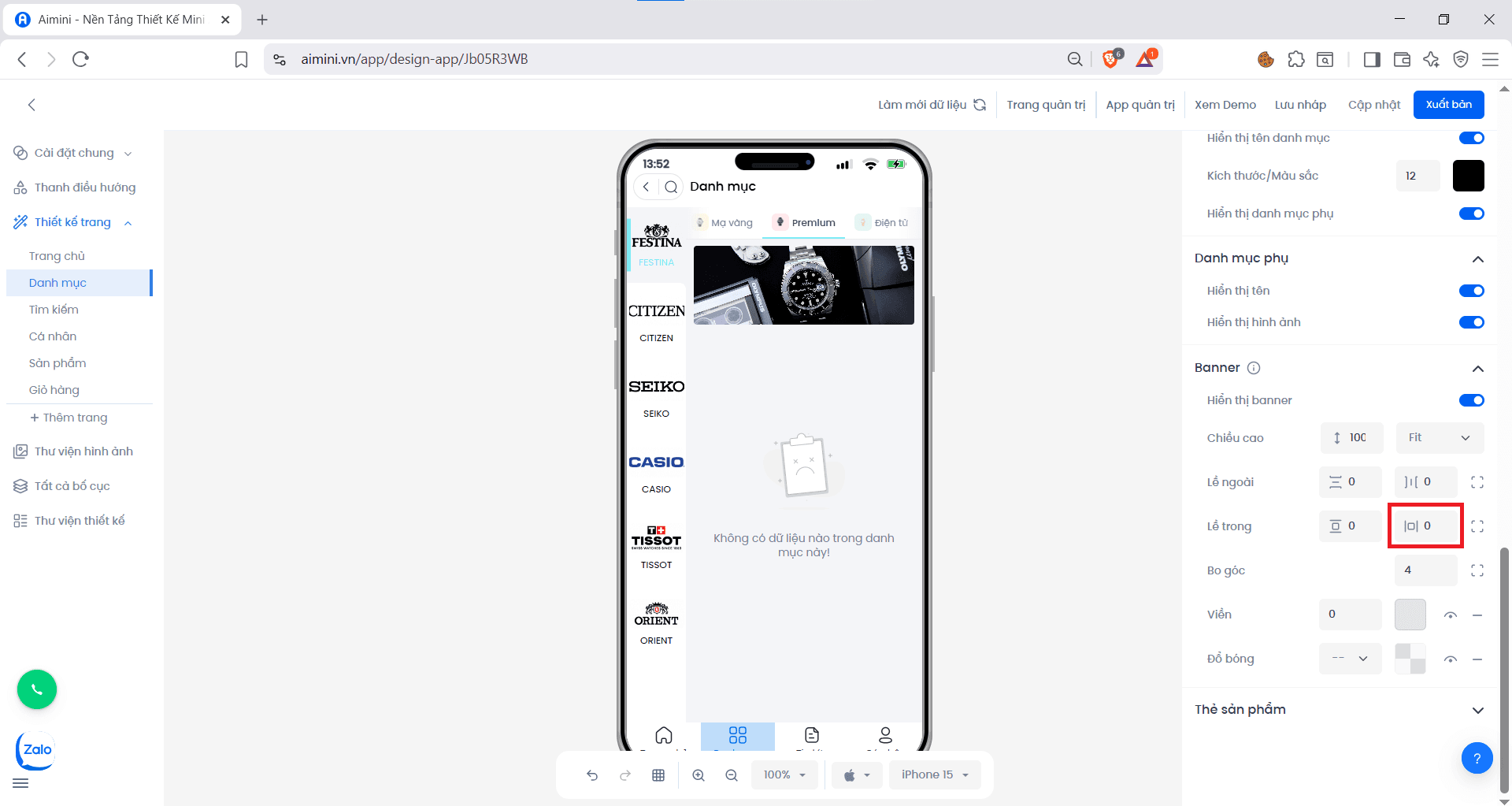
 * Người dùng muốn **chỉnh khoảng cách trái – phải** bên trong phần tử nhấn nút.
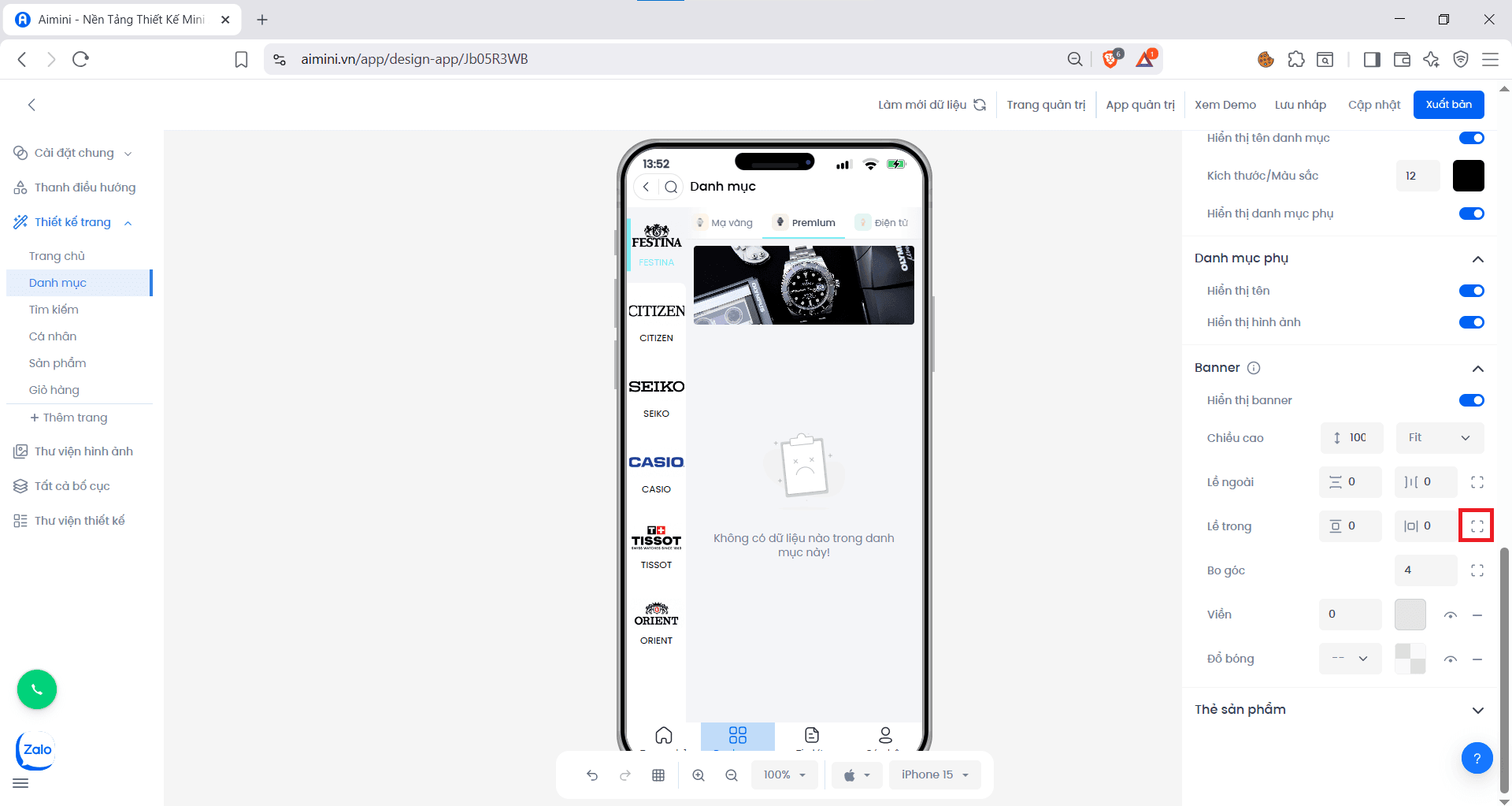
 * Nếu muốn **chỉnh riêng từng bên trái hoặc phải** ,**chỉnh riêng lề trên hoặc lề dưới**, nhấn nút.
 **Bo góc**
* Người dùng có thể nhập hoặc tăng/giảm chung độ bo góc của 4 góc của header tại ô nhập
**Bo góc**
* Người dùng có thể nhập hoặc tăng/giảm chung độ bo góc của 4 góc của header tại ô nhập
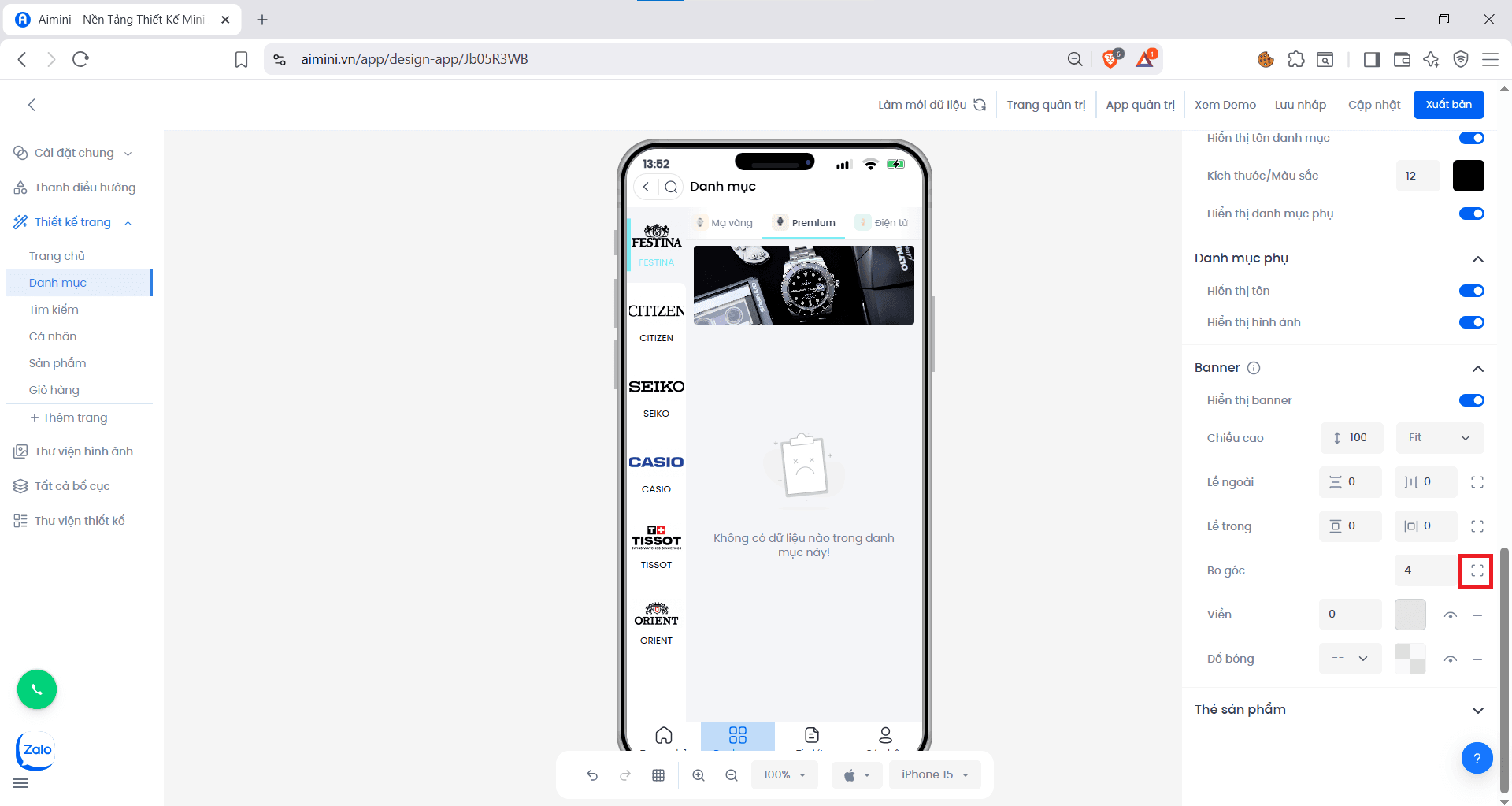
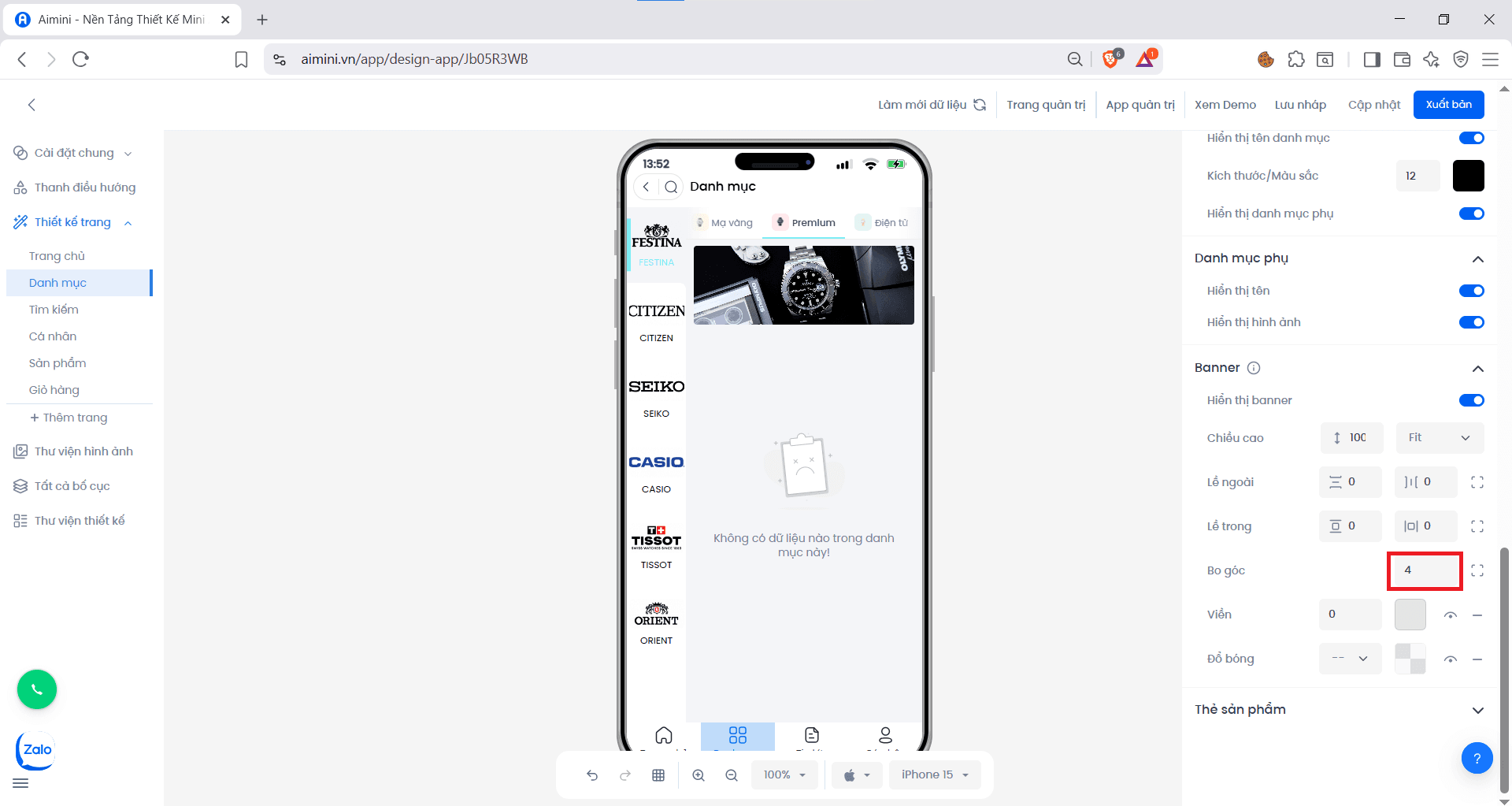 hoặc điều chỉnh riêng lẻ độ bo góc của từng góc bằng cách nhấn nút
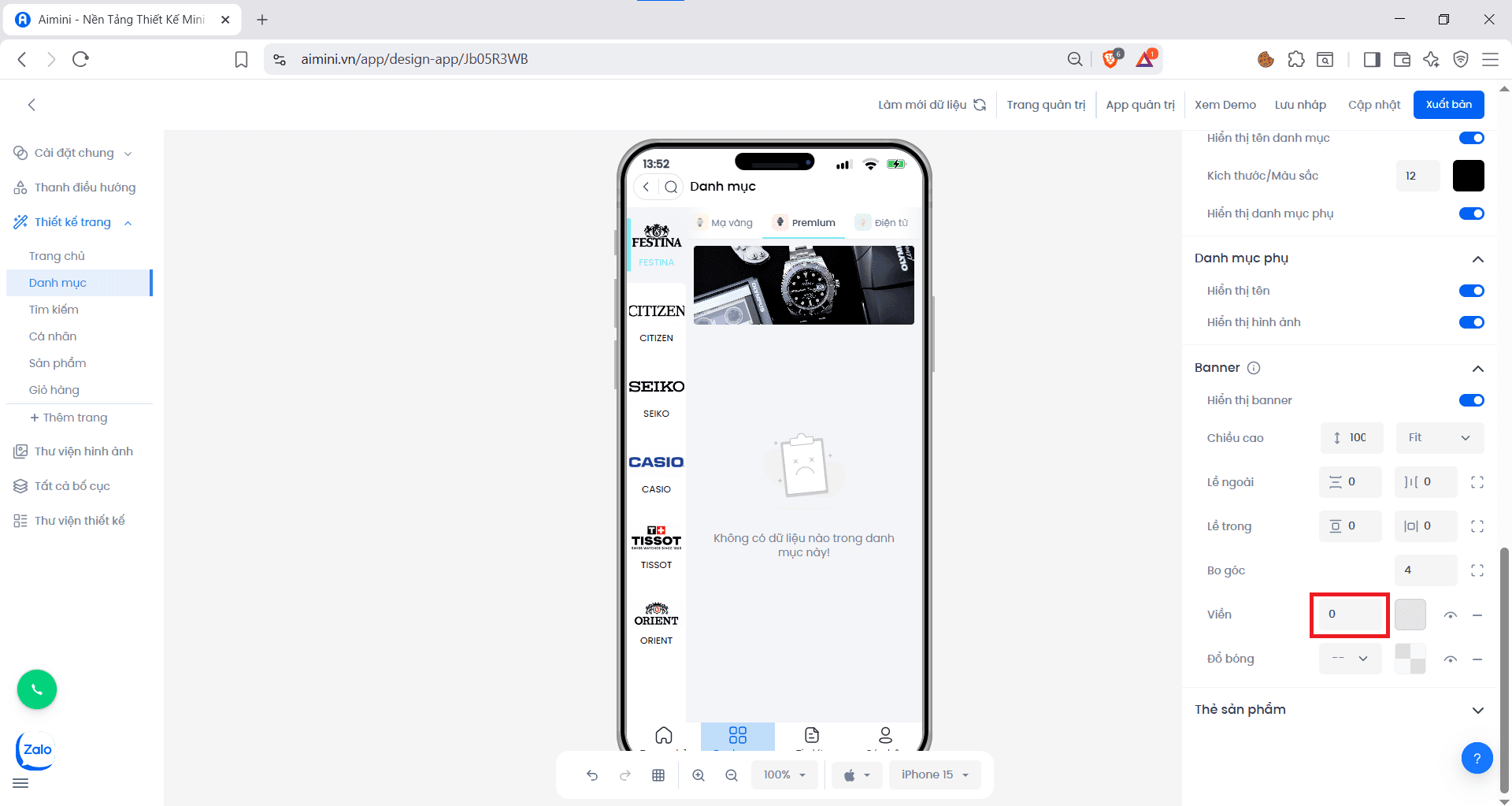
 **Viền**
* Người dùng có thể nhập hoặc tăng/giảm chung độ lớn viền của header tại ô nhập
**Viền**
* Người dùng có thể nhập hoặc tăng/giảm chung độ lớn viền của header tại ô nhập
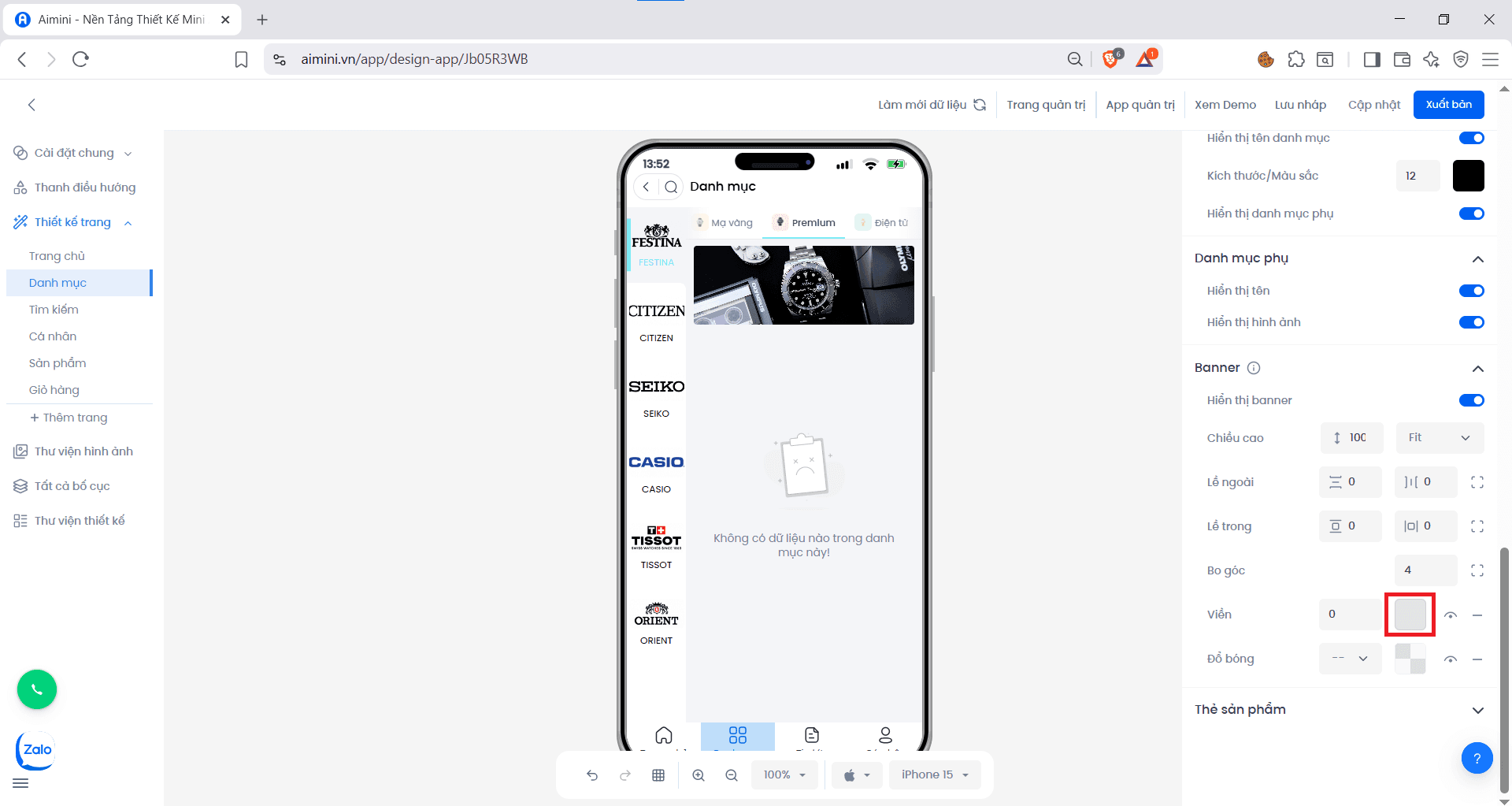
 * Chọn màu cho viền bằng cách nhấn ô vuông sau đó chọn màu
 * Chuyển đổi qua lại giữa 2 trạng thái có viền và không viền bằng cách nhấn nút
* Xóa viền bằng cách nhấn nút
**Đổ bóng**
* Người dùng có thể chọn độ lớn đổ bóng của header tại ô
* Chuyển đổi qua lại giữa 2 trạng thái có viền và không viền bằng cách nhấn nút
* Xóa viền bằng cách nhấn nút
**Đổ bóng**
* Người dùng có thể chọn độ lớn đổ bóng của header tại ô
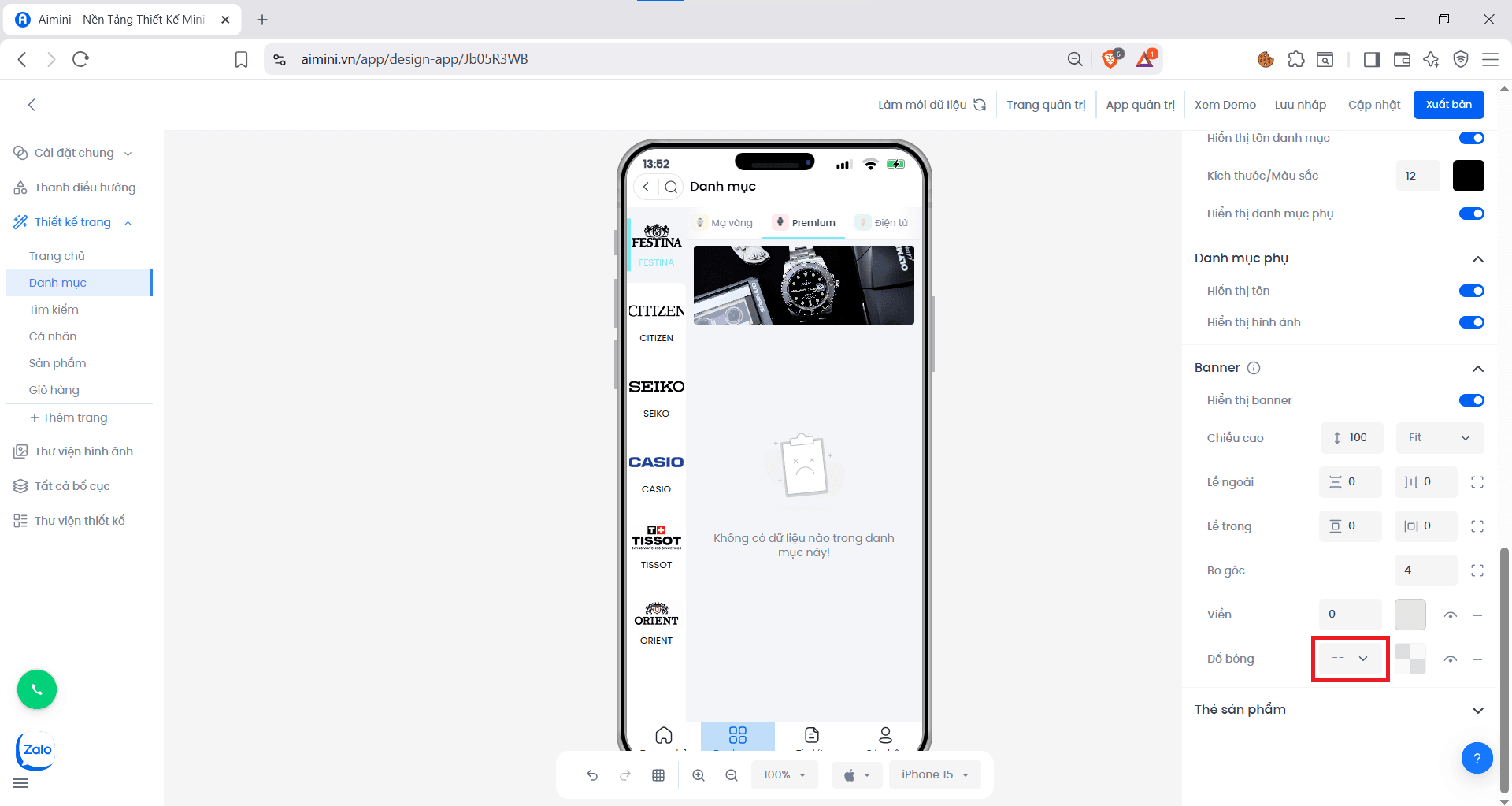 * Chọn màu cho đổ bóng bằng cách nhấn ô vuông sau đó chọn màu
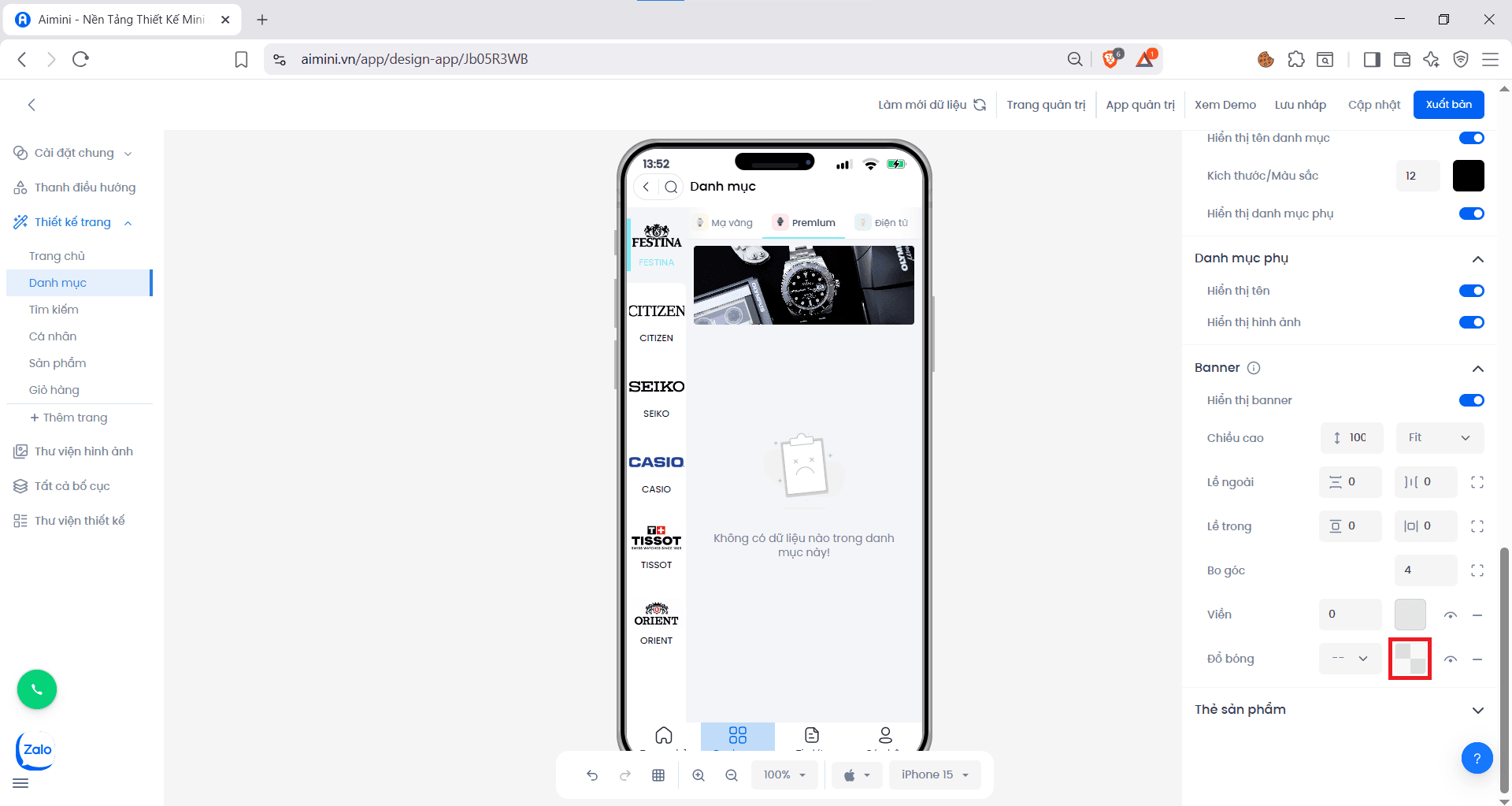 * Chuyển đổi qua lại giữa 2 trạng thái có đổ bóng và không đổ bóng bằng cách nhấn nút
* Xóa đồ bóng bằng cách nhấn nút
**Thẻ sản phẩm**
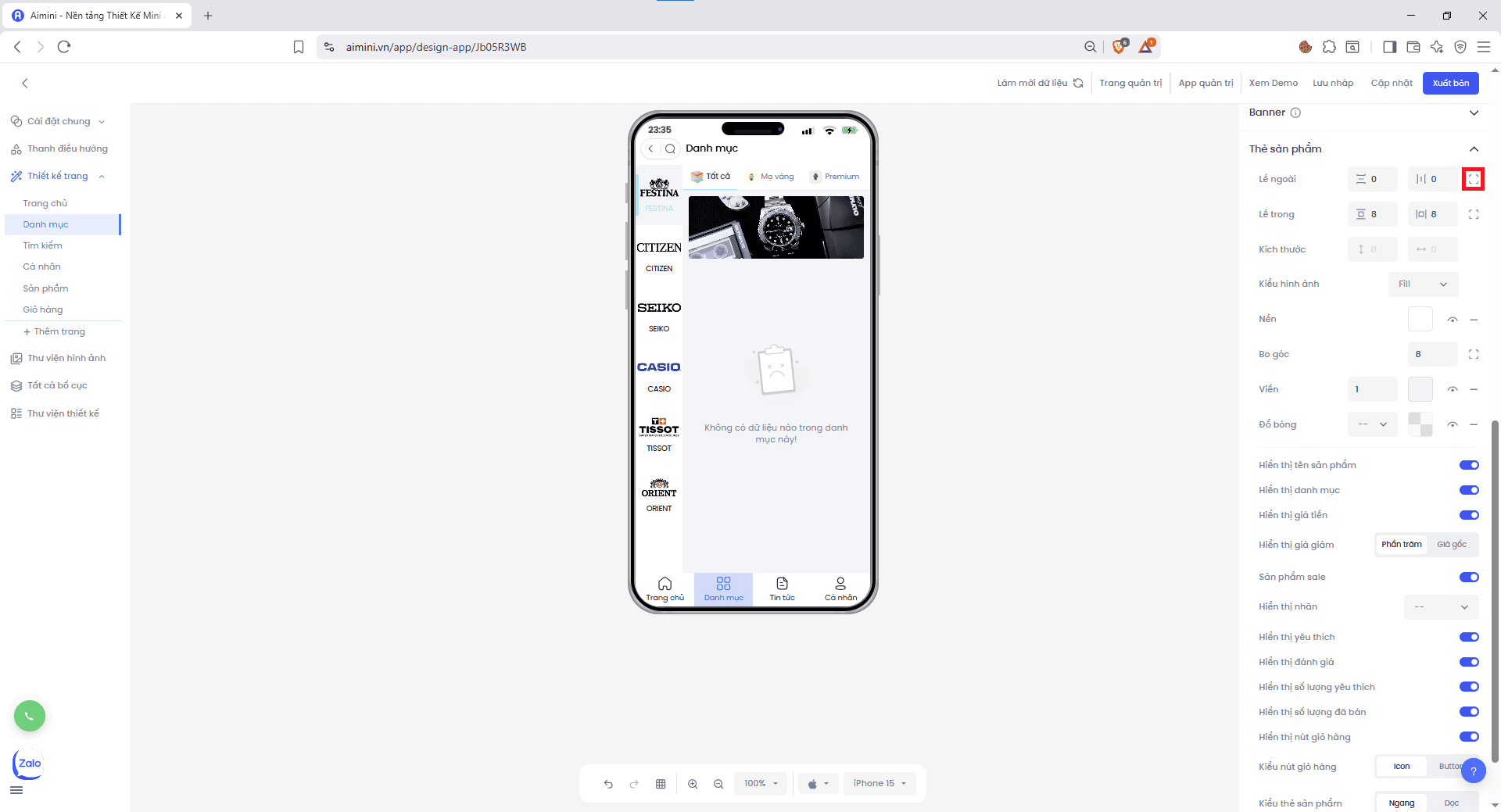
**Lề ngoài**
* Người dùng muốn **chỉnh khoảng cách trên – dưới** giữa phần tử và các phần khác trên trang nhấn nút.
* Chuyển đổi qua lại giữa 2 trạng thái có đổ bóng và không đổ bóng bằng cách nhấn nút
* Xóa đồ bóng bằng cách nhấn nút
**Thẻ sản phẩm**
**Lề ngoài**
* Người dùng muốn **chỉnh khoảng cách trên – dưới** giữa phần tử và các phần khác trên trang nhấn nút.
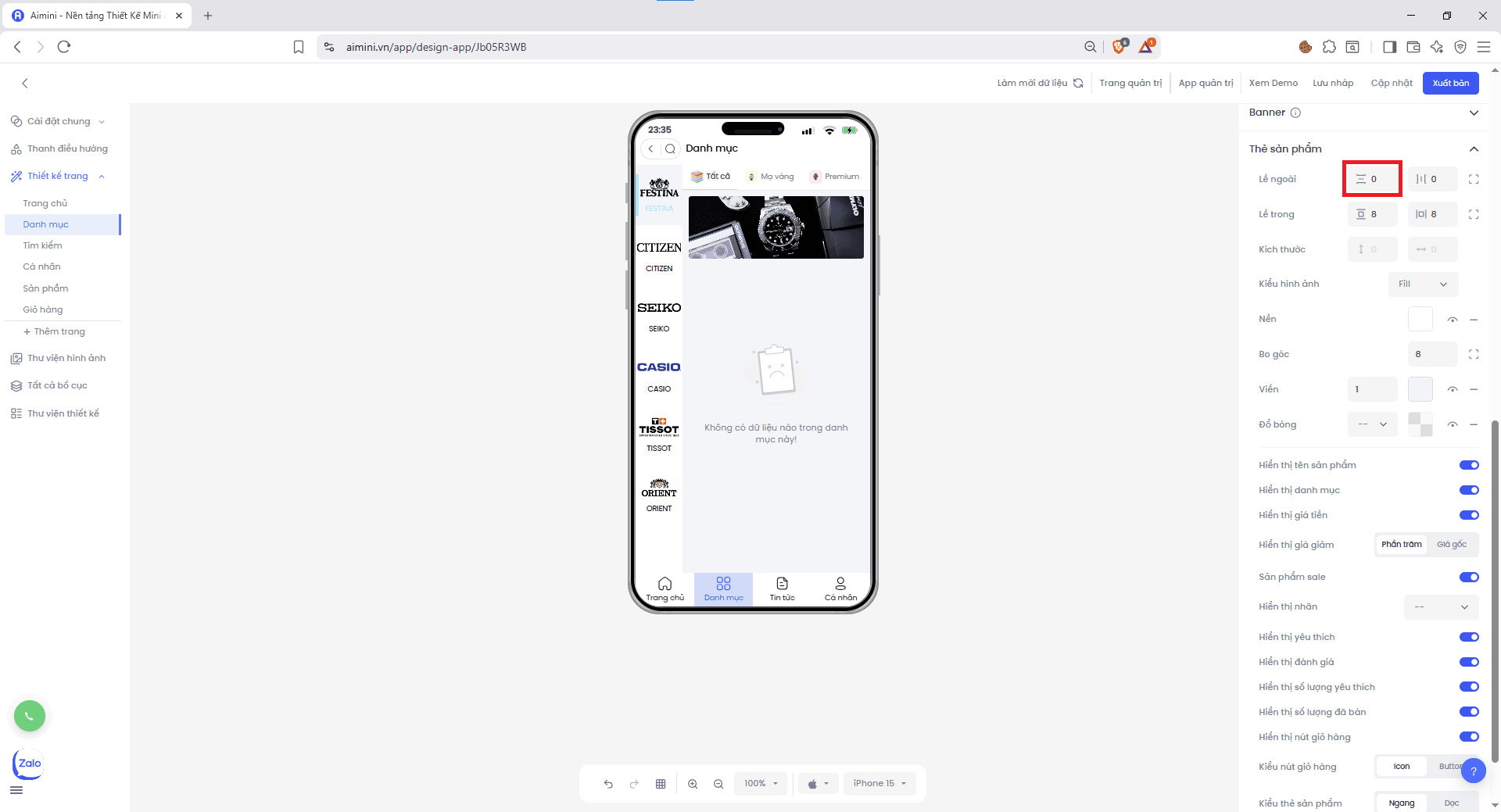 * Người dùng muốn **chỉnh khoảng cách trái – phải** của phần tử nhấn nút.
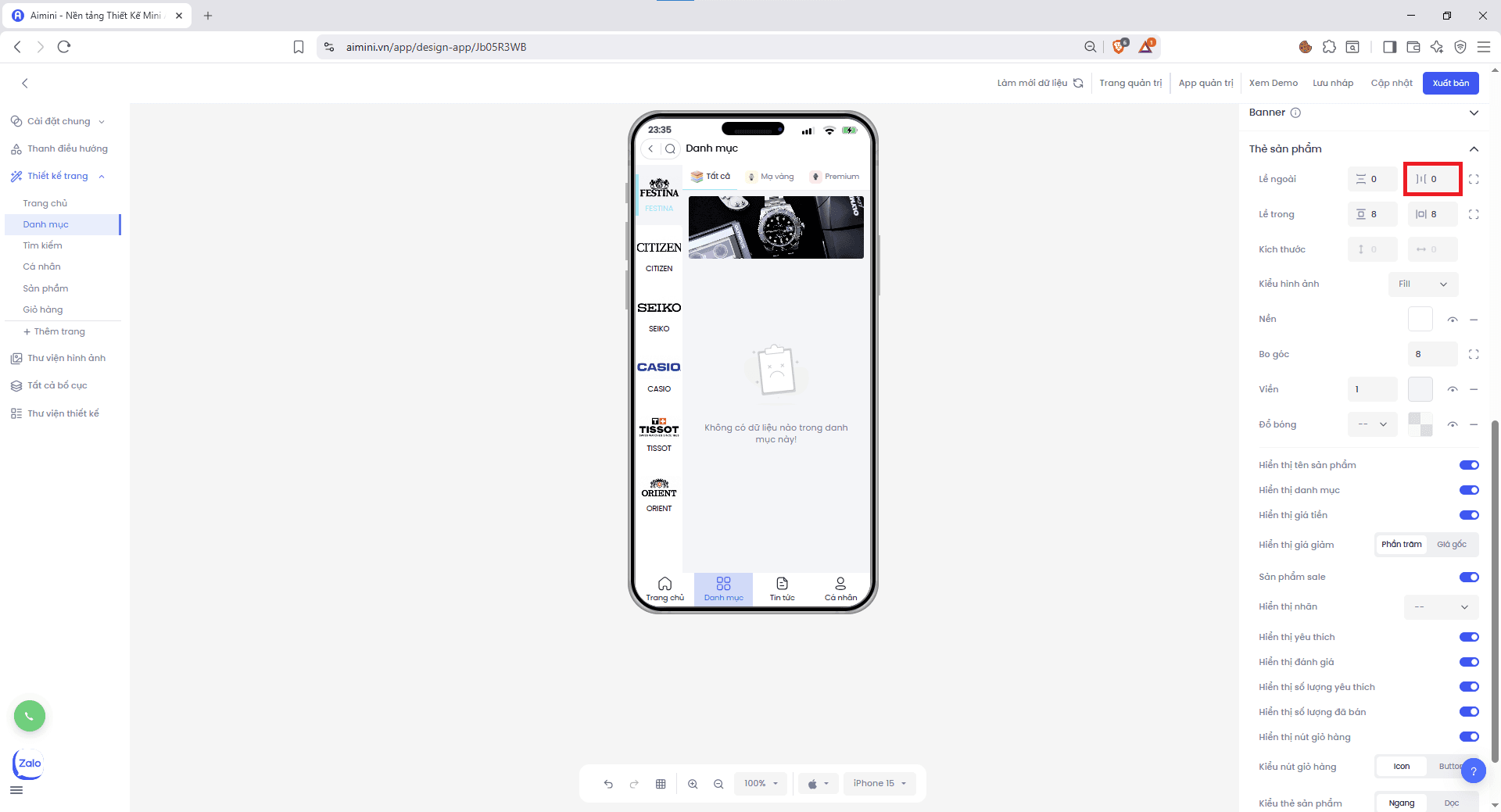 * Nếu muốn **chỉnh riêng từng bên trái hoặc phải** ,**chỉnh riêng lề trên hoặc lề dưới**, nhấn nút.
 **Lề trong**
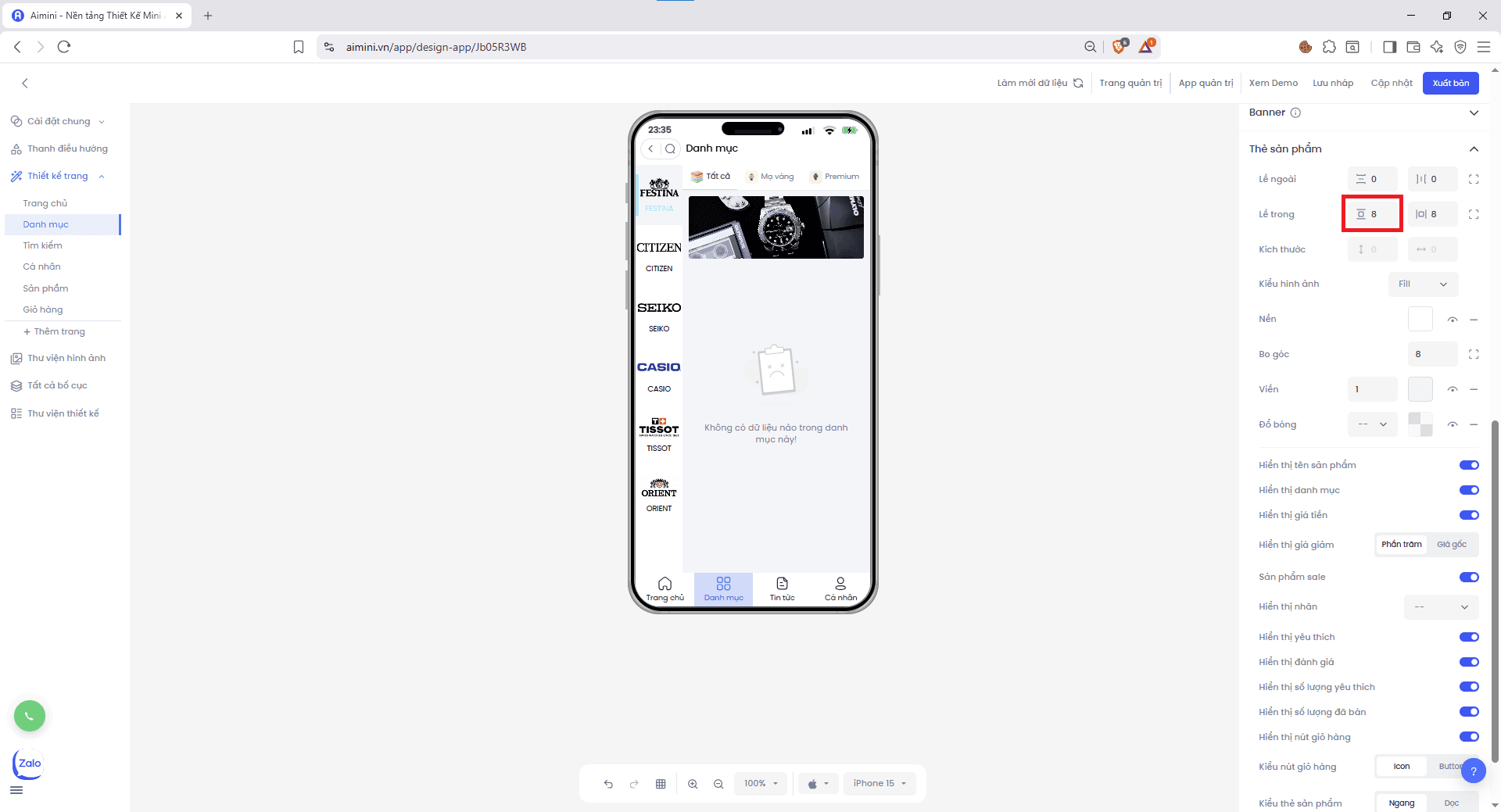
* Người dùng muốn **chỉnh khoảng cách trên – dưới** giữa nội dung bên trong phần tử và viền của phần tử nhấn nút.
**Lề trong**
* Người dùng muốn **chỉnh khoảng cách trên – dưới** giữa nội dung bên trong phần tử và viền của phần tử nhấn nút.
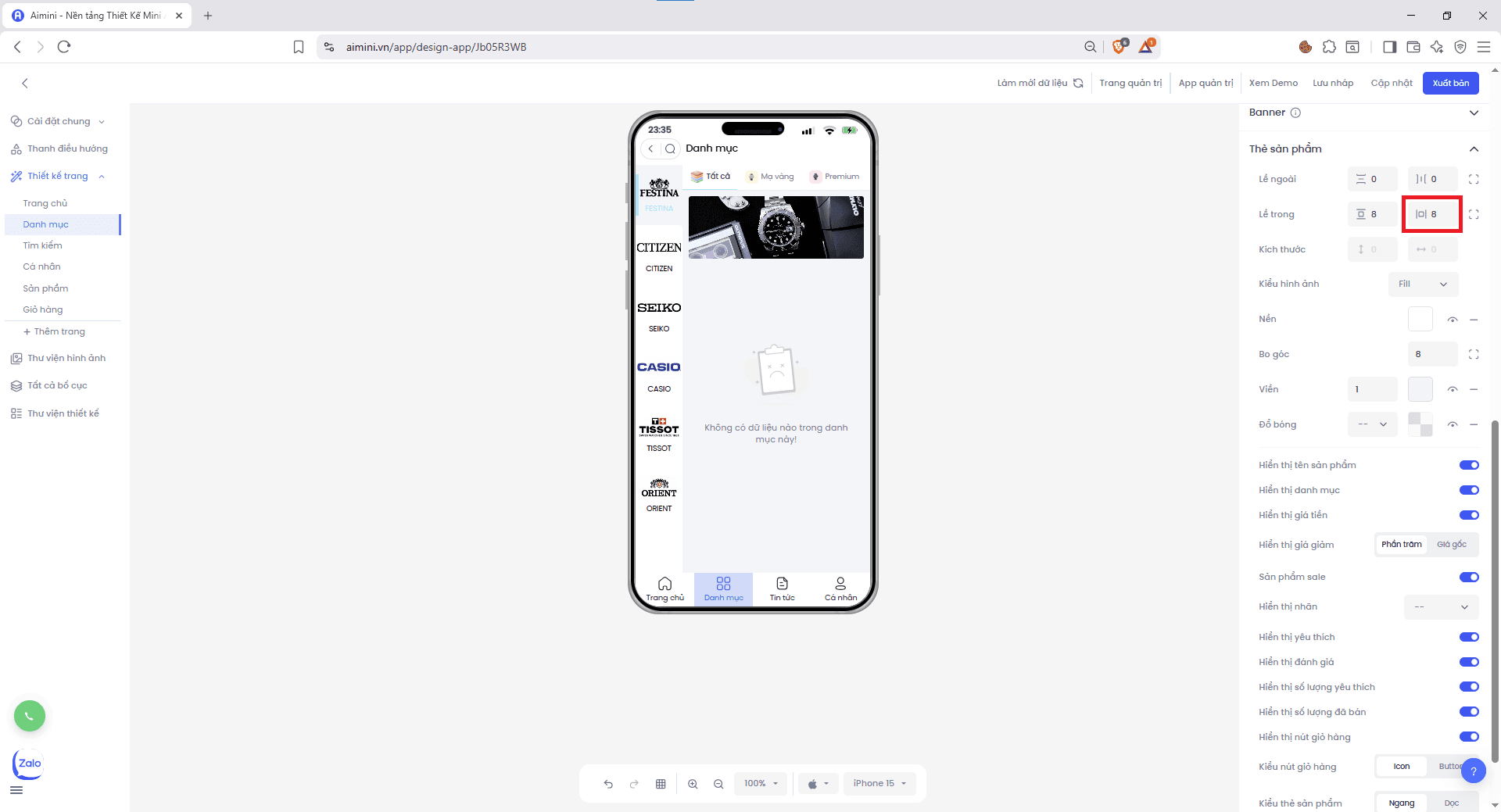
 * Người dùng muốn **chỉnh khoảng cách trái – phải** bên trong phần tử nhấn nút.
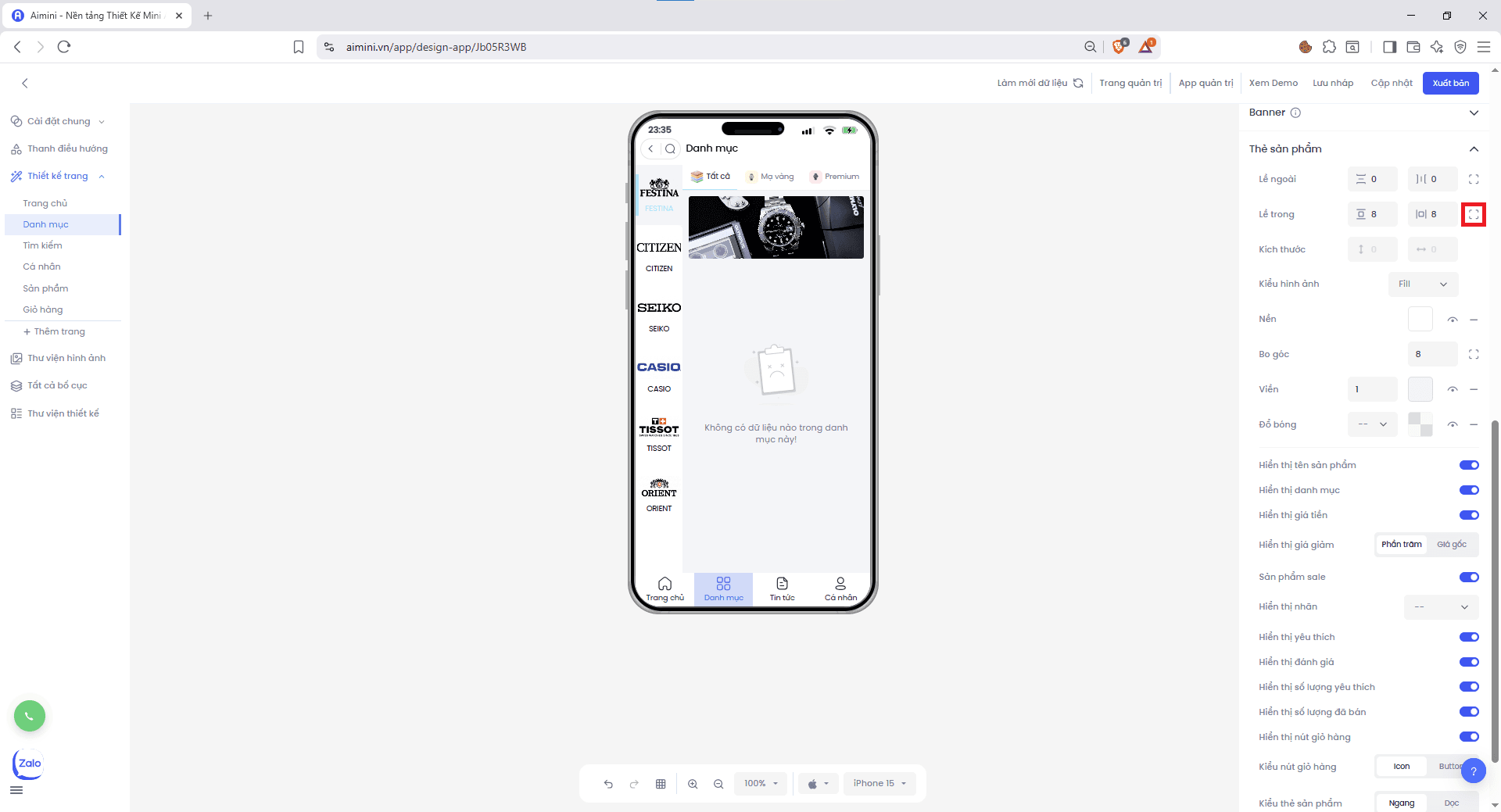
 * Nếu muốn **chỉnh riêng từng bên trái hoặc phải** ,**chỉnh riêng lề trên hoặc lề dưới**, nhấn nút.
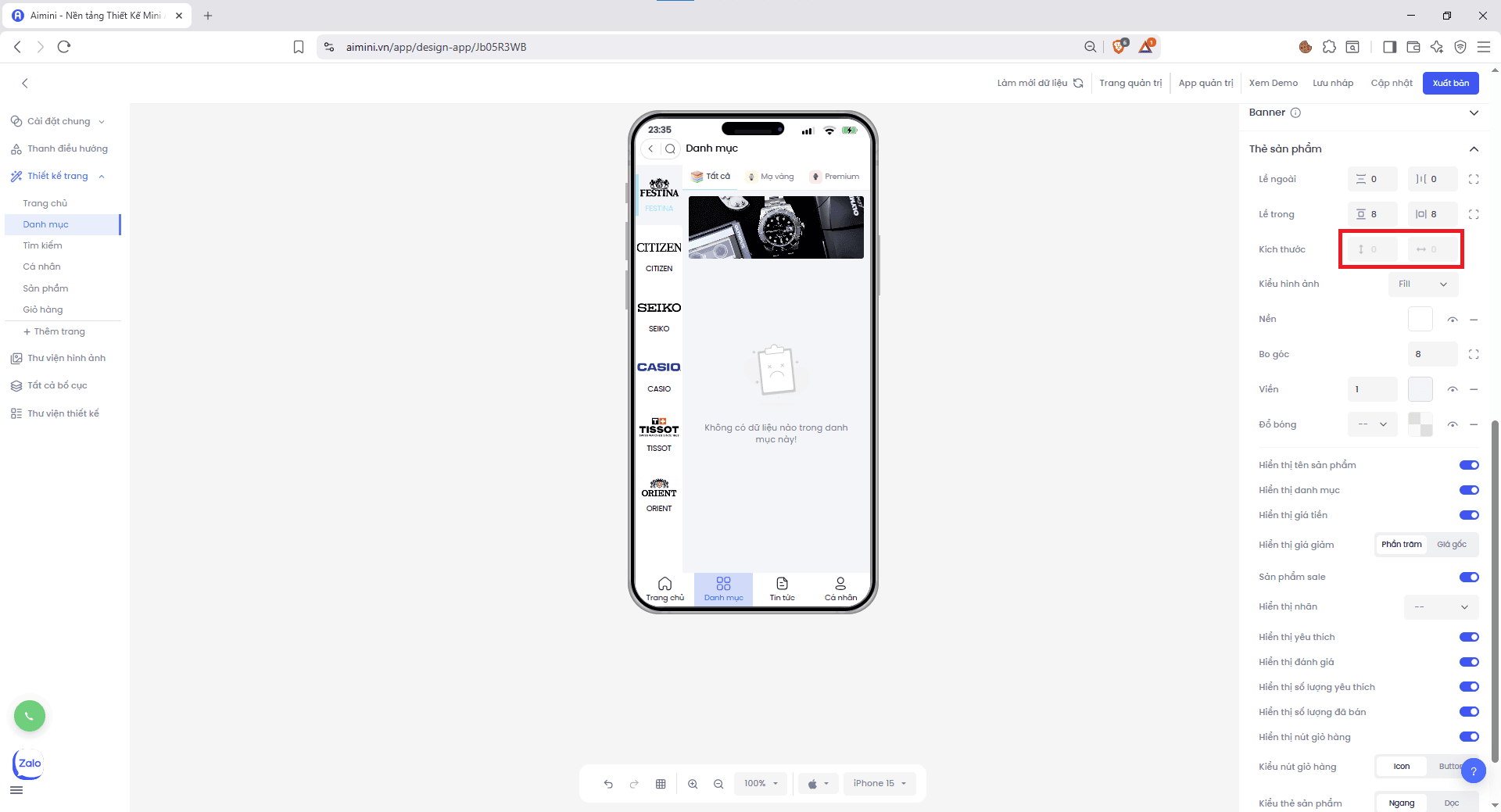
 **Kích thước** Người dùng có thể điều chỉnh kích thước cho tiêu đề của thẻ sản phẩm tại
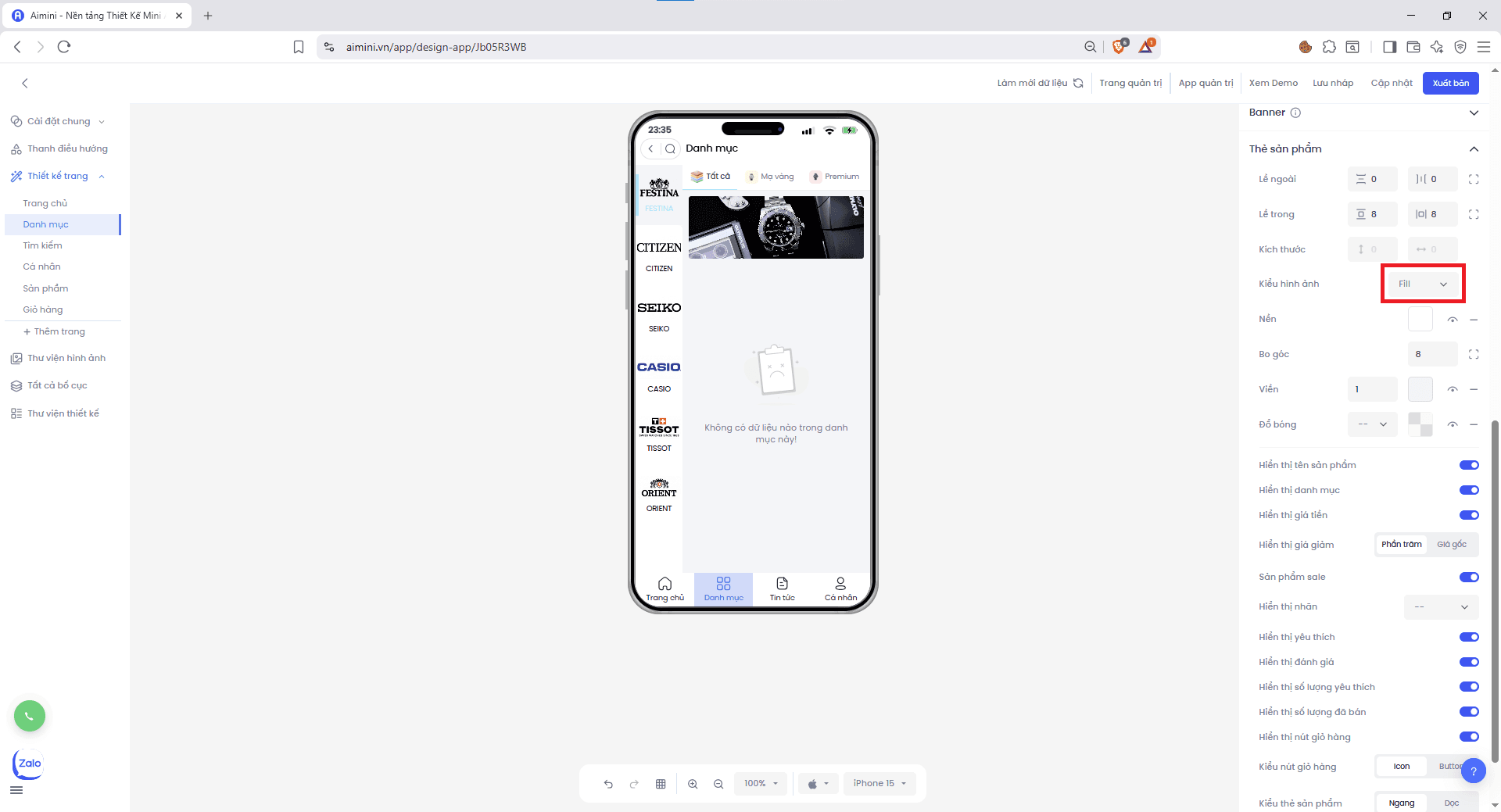
 **Kiểu hình ảnh** Người dùng có thể chọn kiểu hình ảnh các thẻ sản phẩm tại
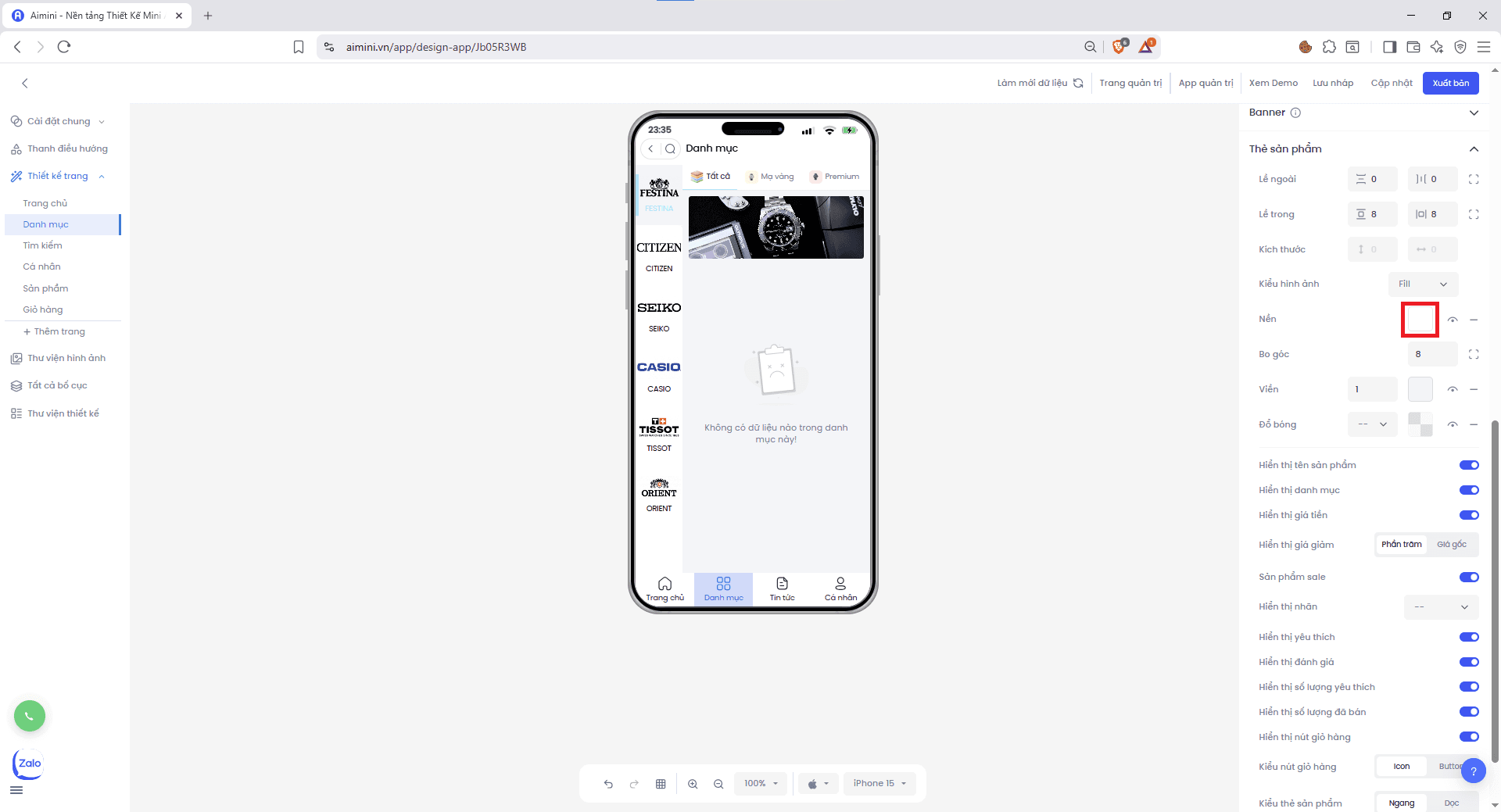
 * **Nền**
* Chọn màu nền cho header bằng cách nhấn ô vuông sau đó chọn màu
* **Nền**
* Chọn màu nền cho header bằng cách nhấn ô vuông sau đó chọn màu
 * Bật/tắt có màu nền và không có màu nền bằng cách nhấn nút
* Xóa màu nền bằng cách nhấn nút
* **Bo góc**
* Người dùng có thể nhập hoặc tăng/giảm chung độ bo góc của 4 góc của header tại ô nhập
* Bật/tắt có màu nền và không có màu nền bằng cách nhấn nút
* Xóa màu nền bằng cách nhấn nút
* **Bo góc**
* Người dùng có thể nhập hoặc tăng/giảm chung độ bo góc của 4 góc của header tại ô nhập
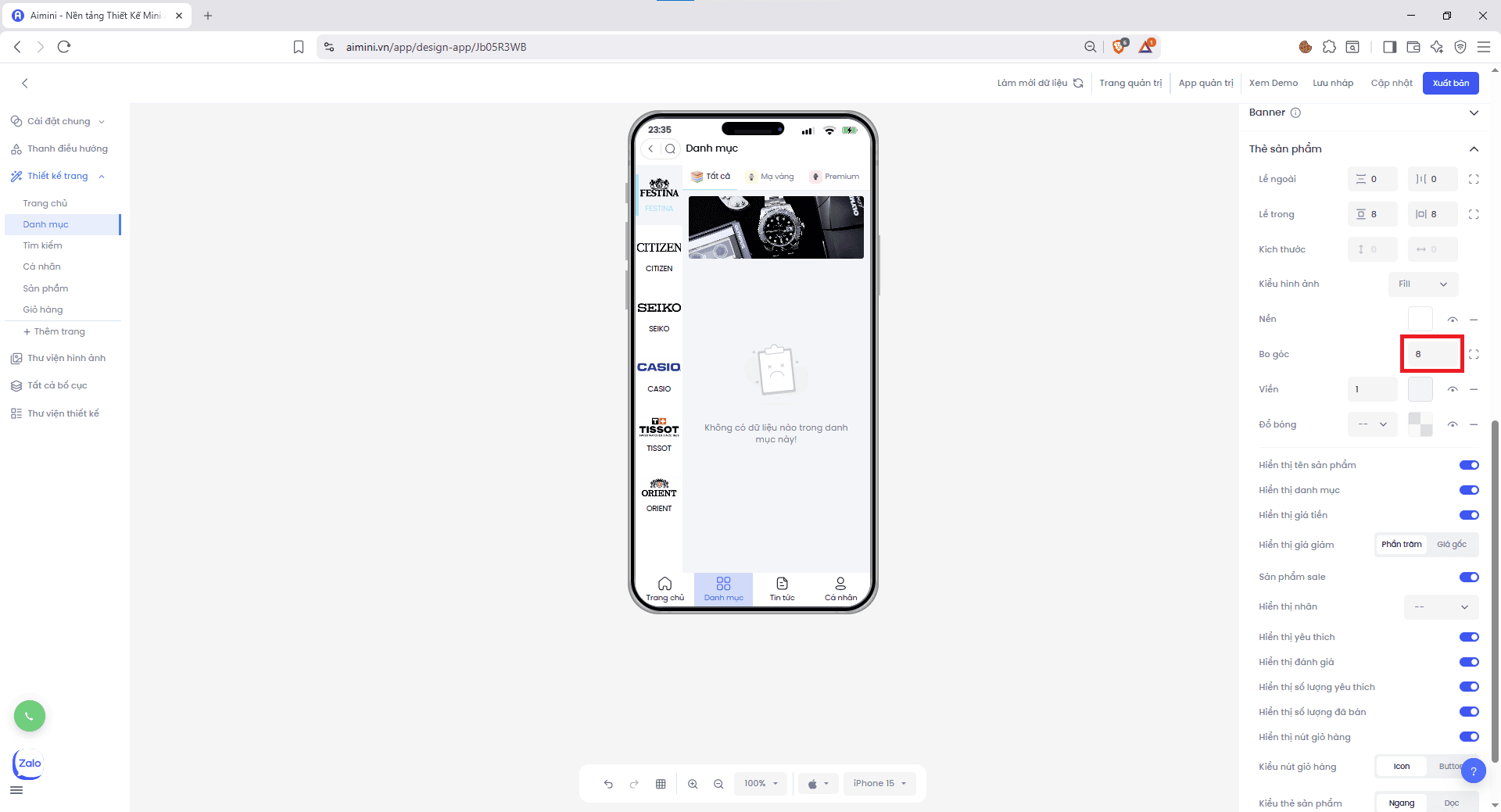 hoặc điều chỉnh riêng lẻ độ bo góc của từng góc bằng cách nhấn nút
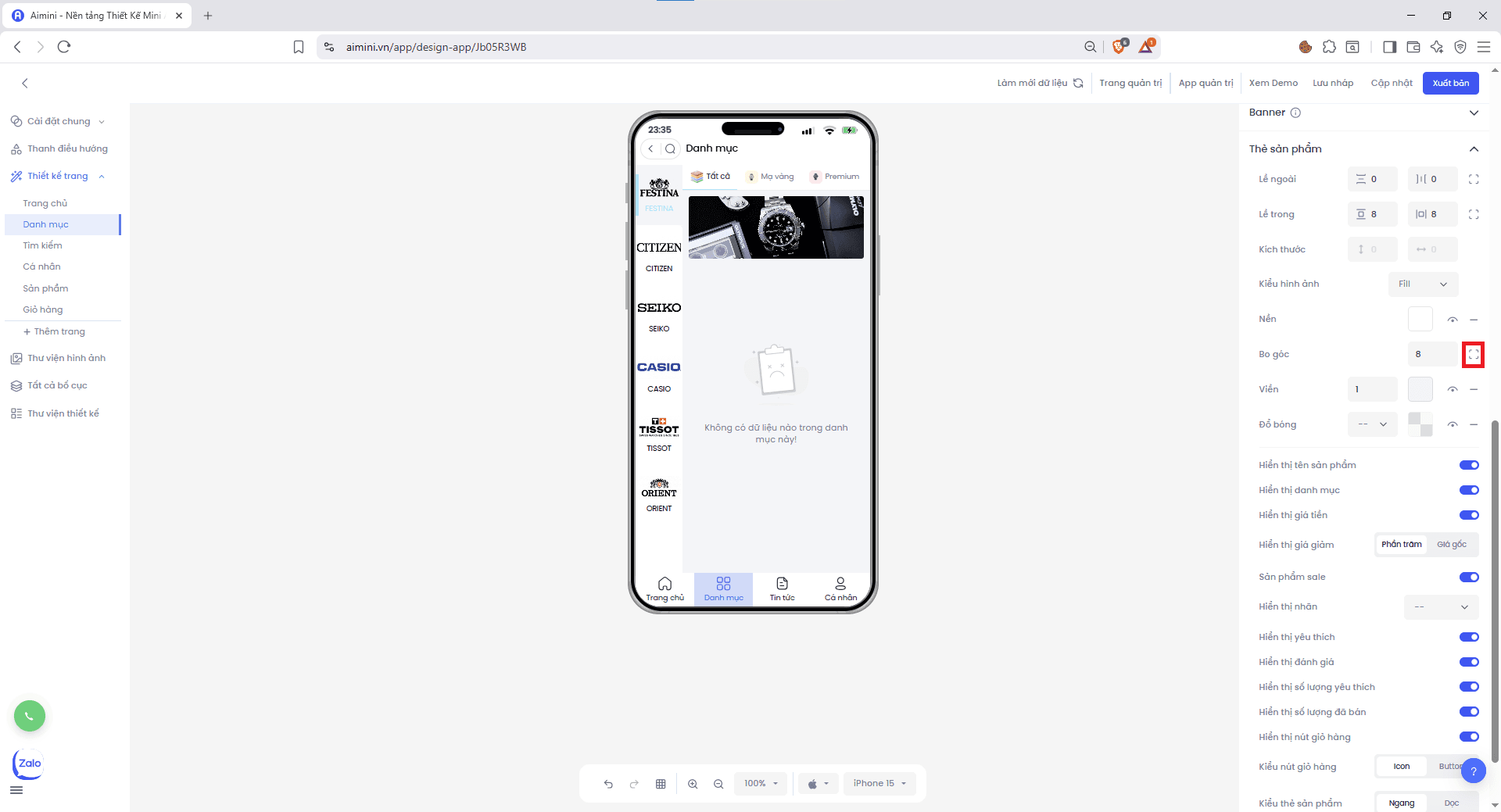 * **Viền**
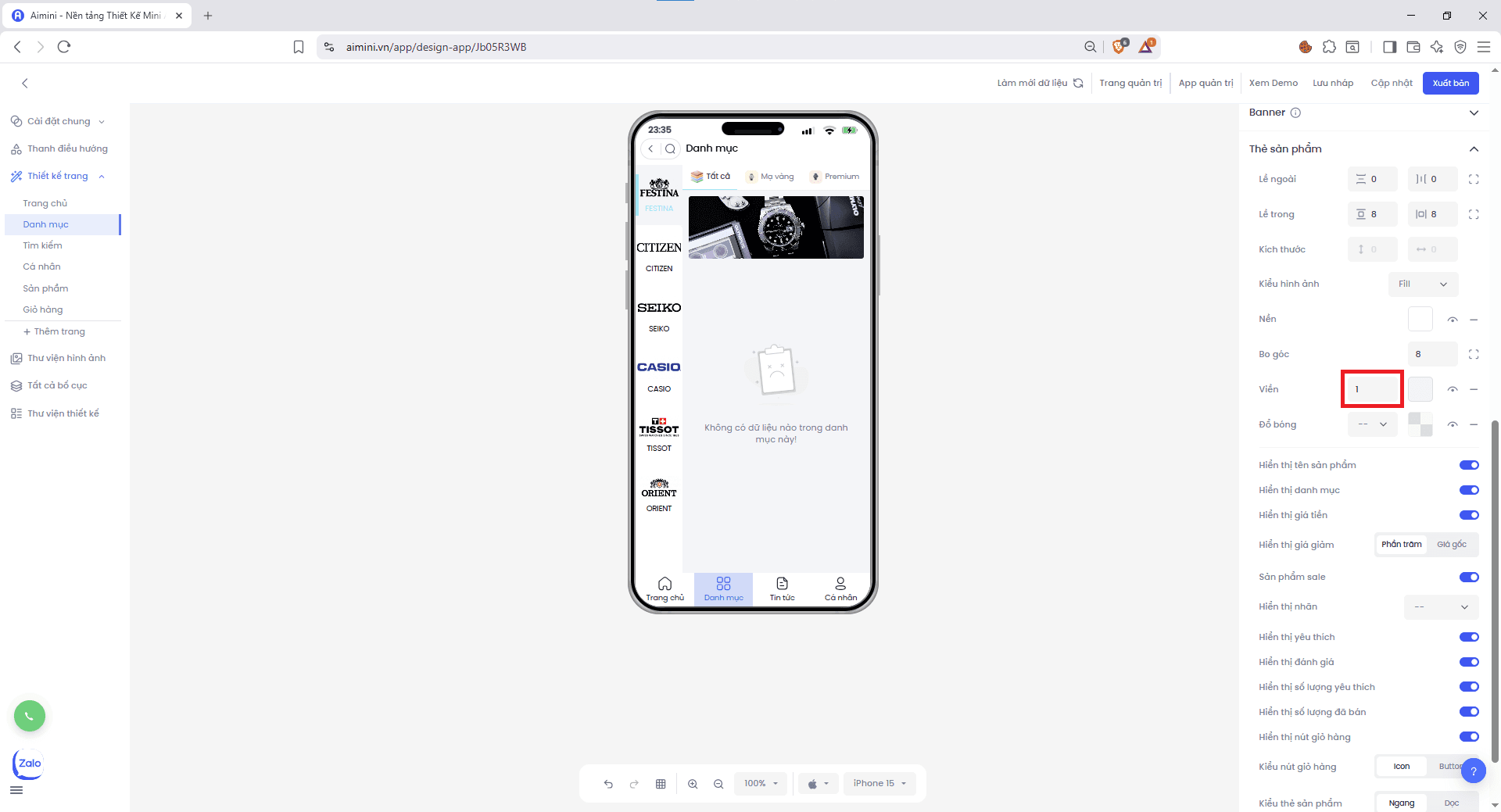
* Người dùng có thể nhập hoặc tăng/giảm chung độ lớn viền của header tại ô nhập
* **Viền**
* Người dùng có thể nhập hoặc tăng/giảm chung độ lớn viền của header tại ô nhập
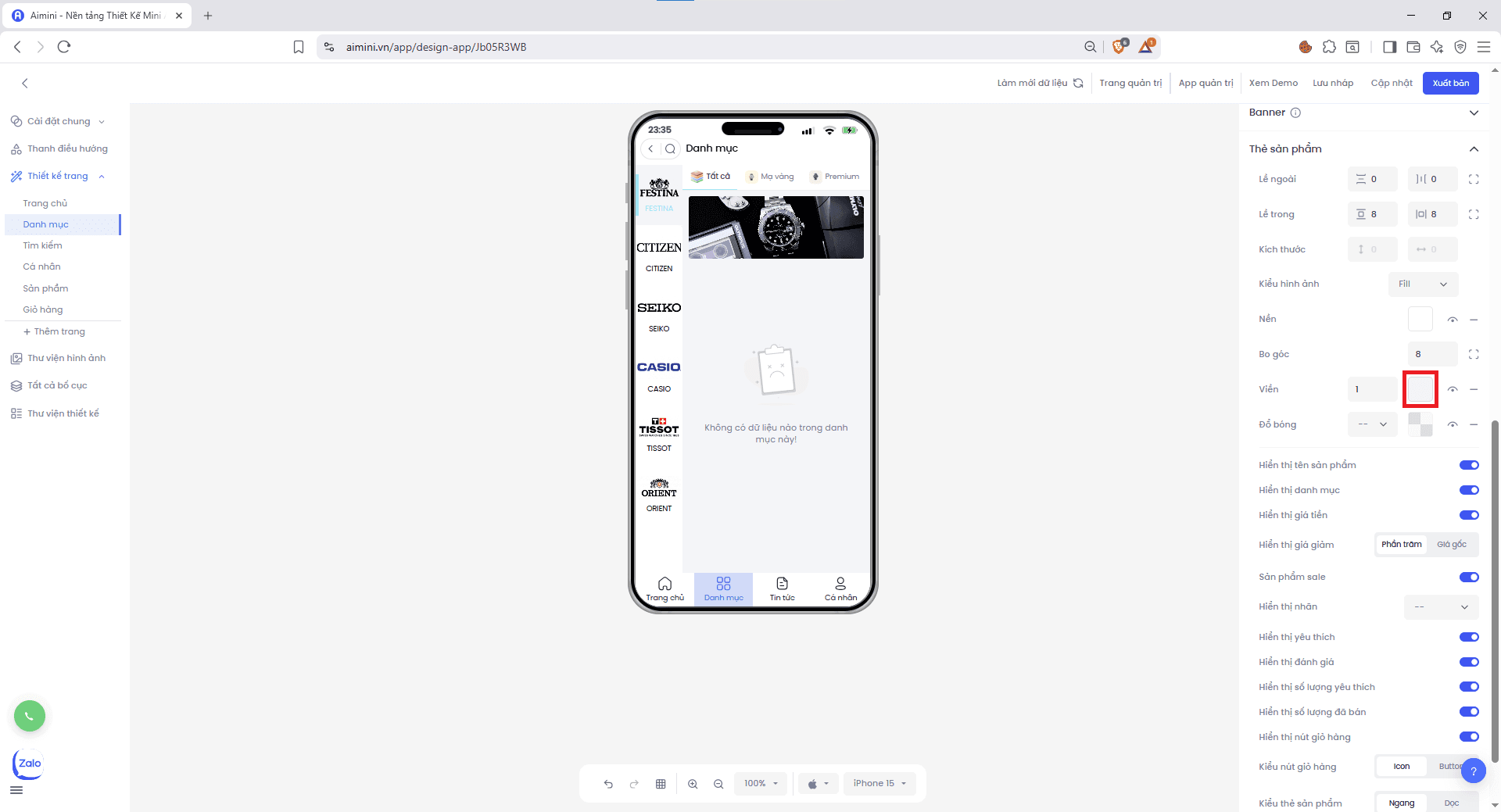
 * Chọn màu cho viền bằng cách nhấn ô vuông sau đó chọn màu
 * Chuyển đổi qua lại giữa 2 trạng thái có viền và không viền bằng cách nhấn nút
* Xóa viền bằng cách nhấn nút
* **Đổ bóng**
* Người dùng có thể chọn độ lớn đổ bóng của header tại ô
* Chuyển đổi qua lại giữa 2 trạng thái có viền và không viền bằng cách nhấn nút
* Xóa viền bằng cách nhấn nút
* **Đổ bóng**
* Người dùng có thể chọn độ lớn đổ bóng của header tại ô
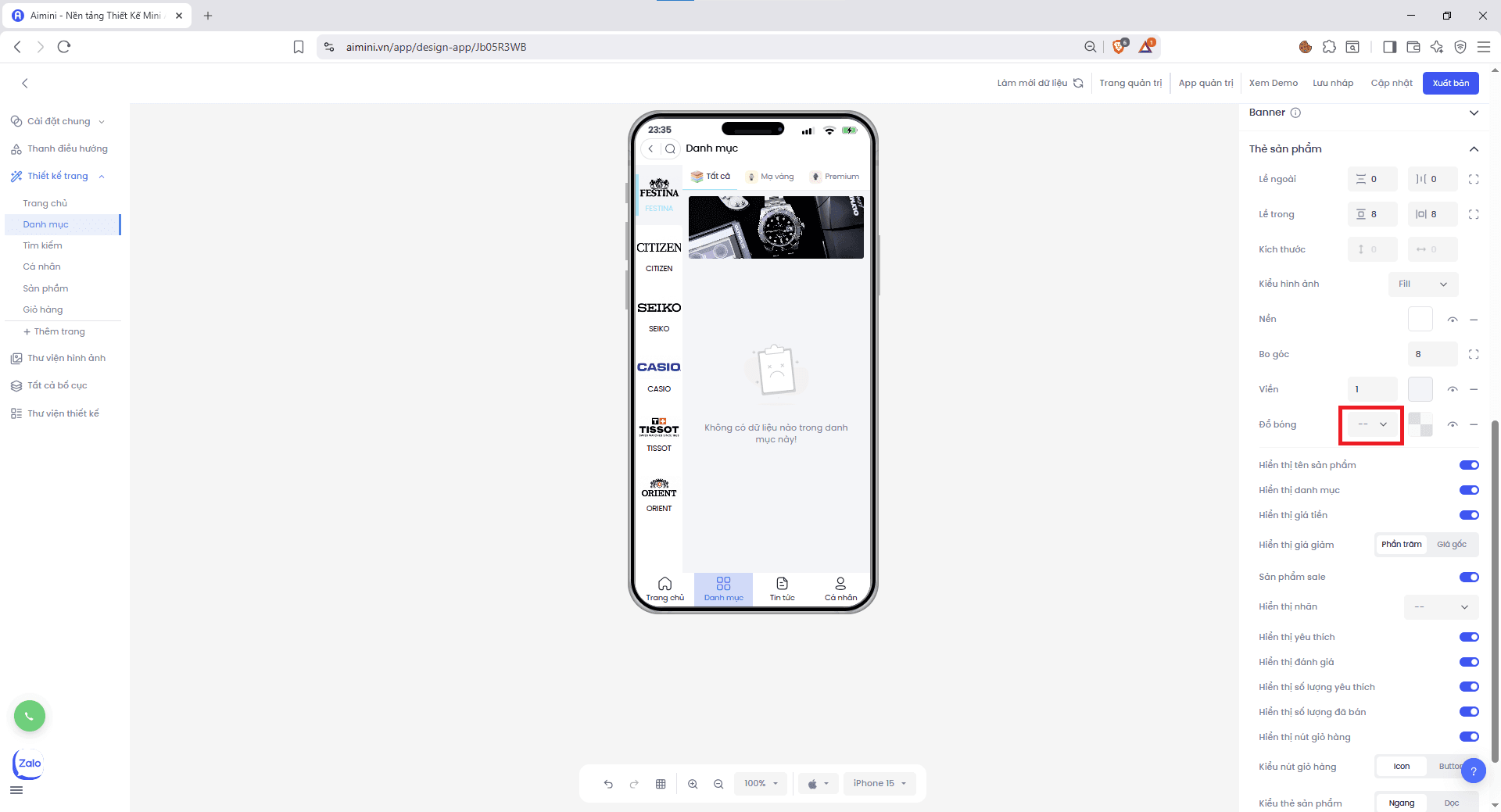 * Chọn màu cho đổ bóng bằng cách nhấn ô vuông sau đó chọn màu
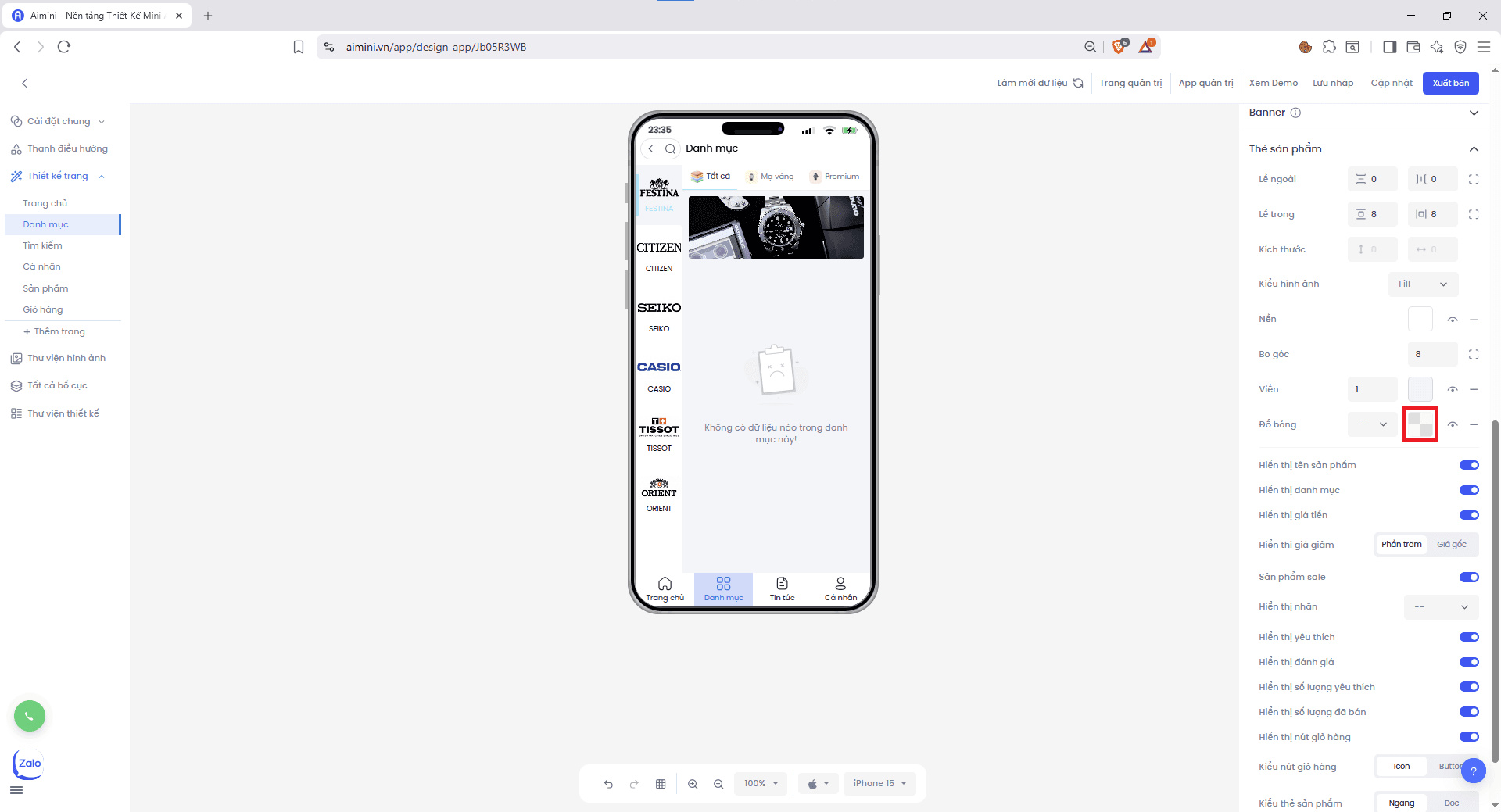 * Nhấn biểu tượng để ẩn hoặc hiển thị hiệu ứng bóng.
* Xóa đồ bóng bằng cách nhấn nút
**Hiển thị tên sản phẩm:**
* Người dùng nhấn nút để bật/tắt các mục **Tên sản phẩm**, **Danh mục**, **Sản phẩm sale**, **Yêu thích**, **Đánh giá**, **Số lượt yêu thích**, **Số lượng đã bán** và **Giỏ hàng**.
* Chọn kiểu hiển thị cho Giá tiền tại
* Nhấn biểu tượng để ẩn hoặc hiển thị hiệu ứng bóng.
* Xóa đồ bóng bằng cách nhấn nút
**Hiển thị tên sản phẩm:**
* Người dùng nhấn nút để bật/tắt các mục **Tên sản phẩm**, **Danh mục**, **Sản phẩm sale**, **Yêu thích**, **Đánh giá**, **Số lượt yêu thích**, **Số lượng đã bán** và **Giỏ hàng**.
* Chọn kiểu hiển thị cho Giá tiền tại
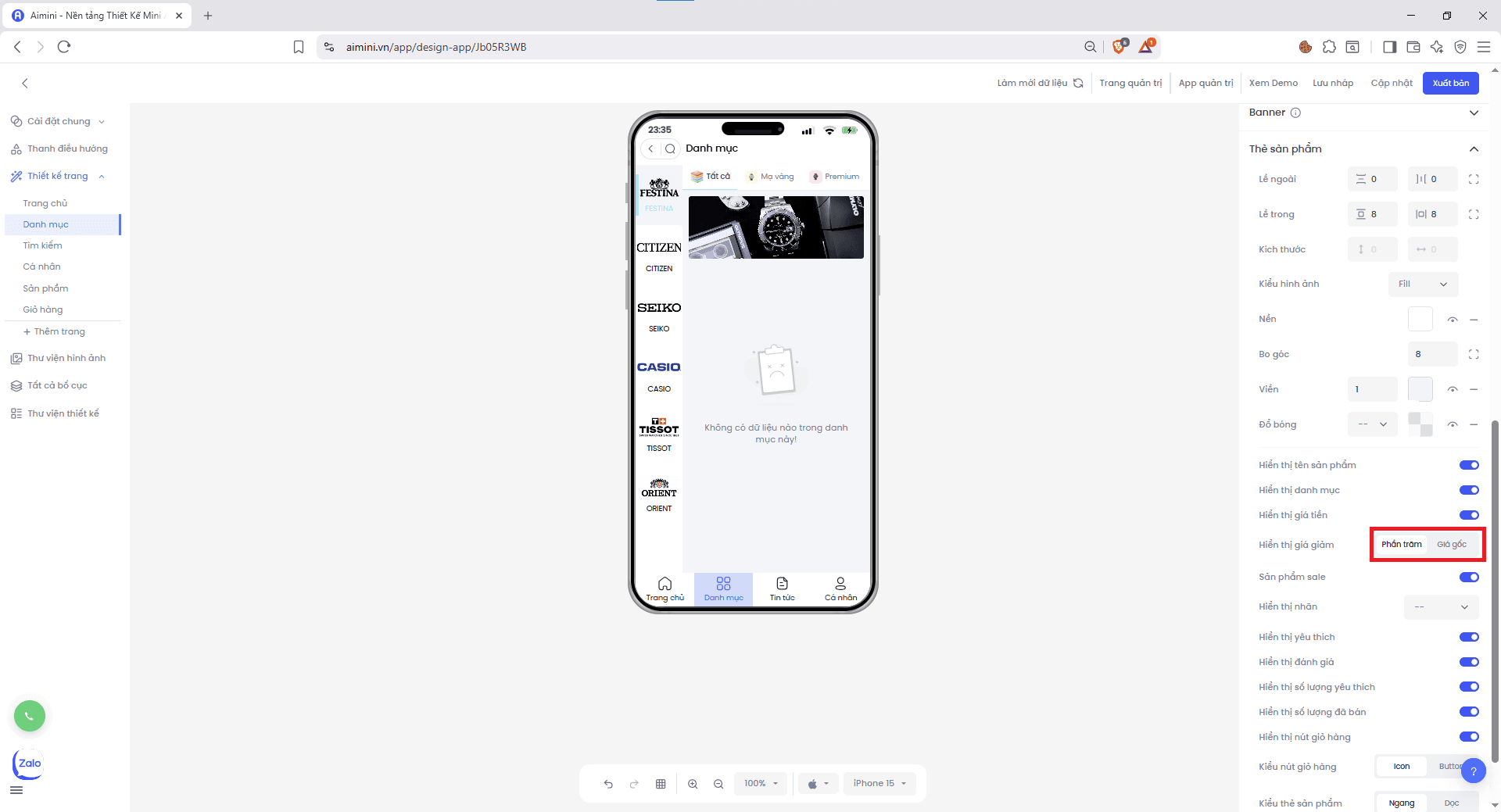 * Chọn kiểu hiển thị cho **Giá giảm** tại
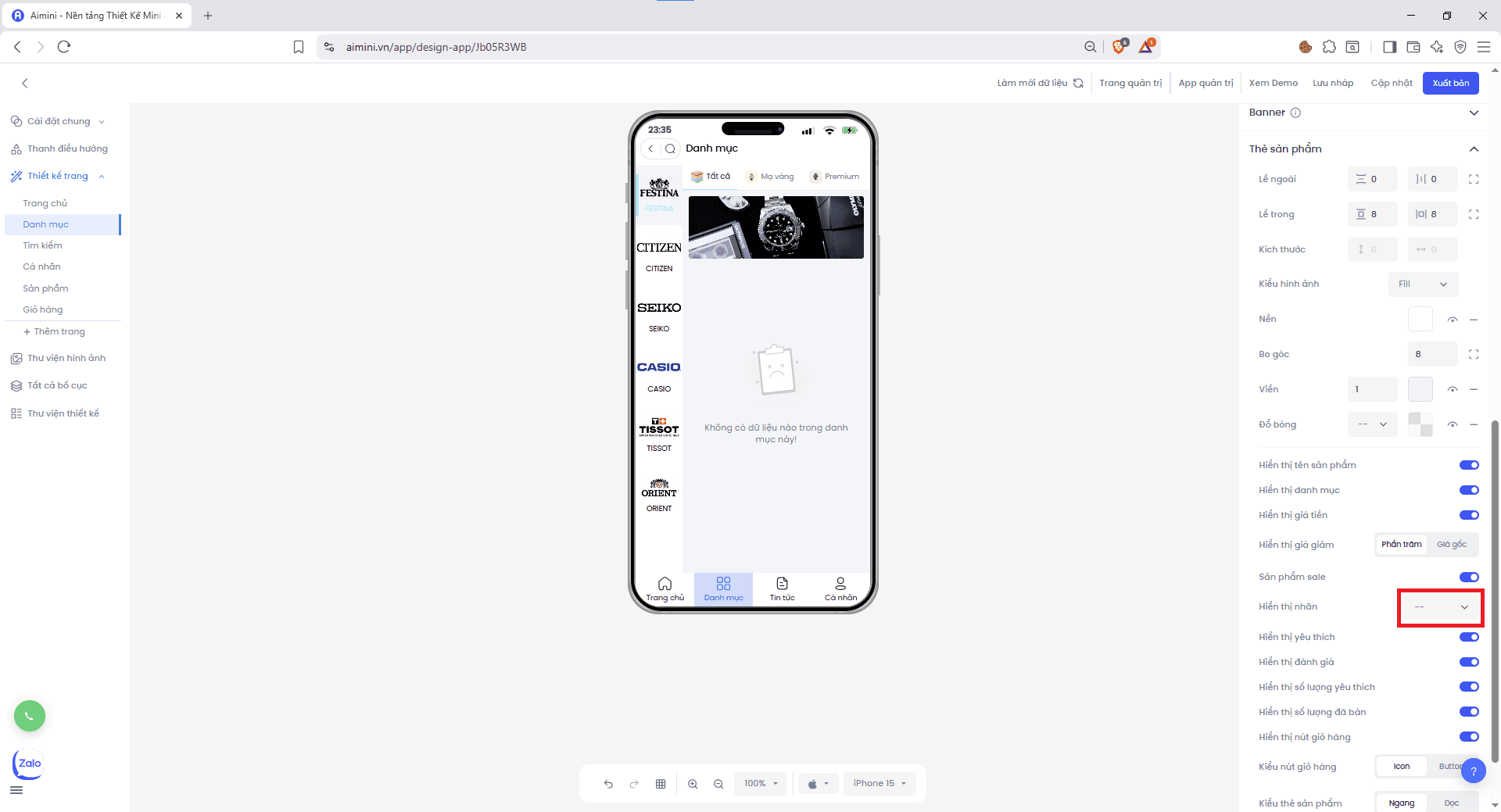
* Người dùng chọn hiển thị nhãn **FlashSale, Bán chạy, Mới nhấ**t hoặc chọn **ẩn nhãn** tại.
* Chọn kiểu hiển thị cho **Giá giảm** tại
* Người dùng chọn hiển thị nhãn **FlashSale, Bán chạy, Mới nhấ**t hoặc chọn **ẩn nhãn** tại.
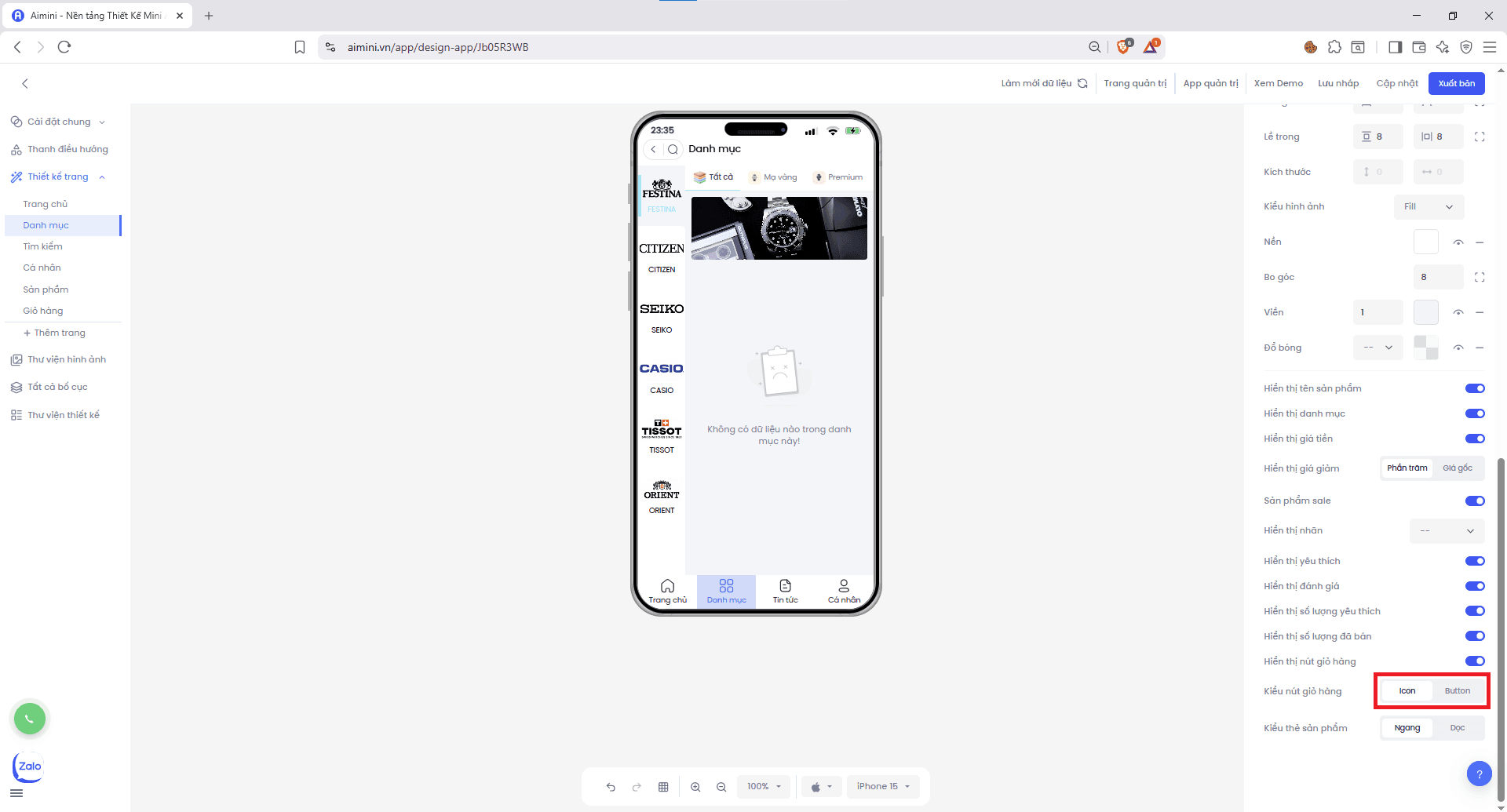
 **Kiểu nút giỏ hàng:**
* Người dùng có thể chọn chuyển đổi hiển thị giỏ hàng giữa icon hoặc button
**Kiểu nút giỏ hàng:**
* Người dùng có thể chọn chuyển đổi hiển thị giỏ hàng giữa icon hoặc button
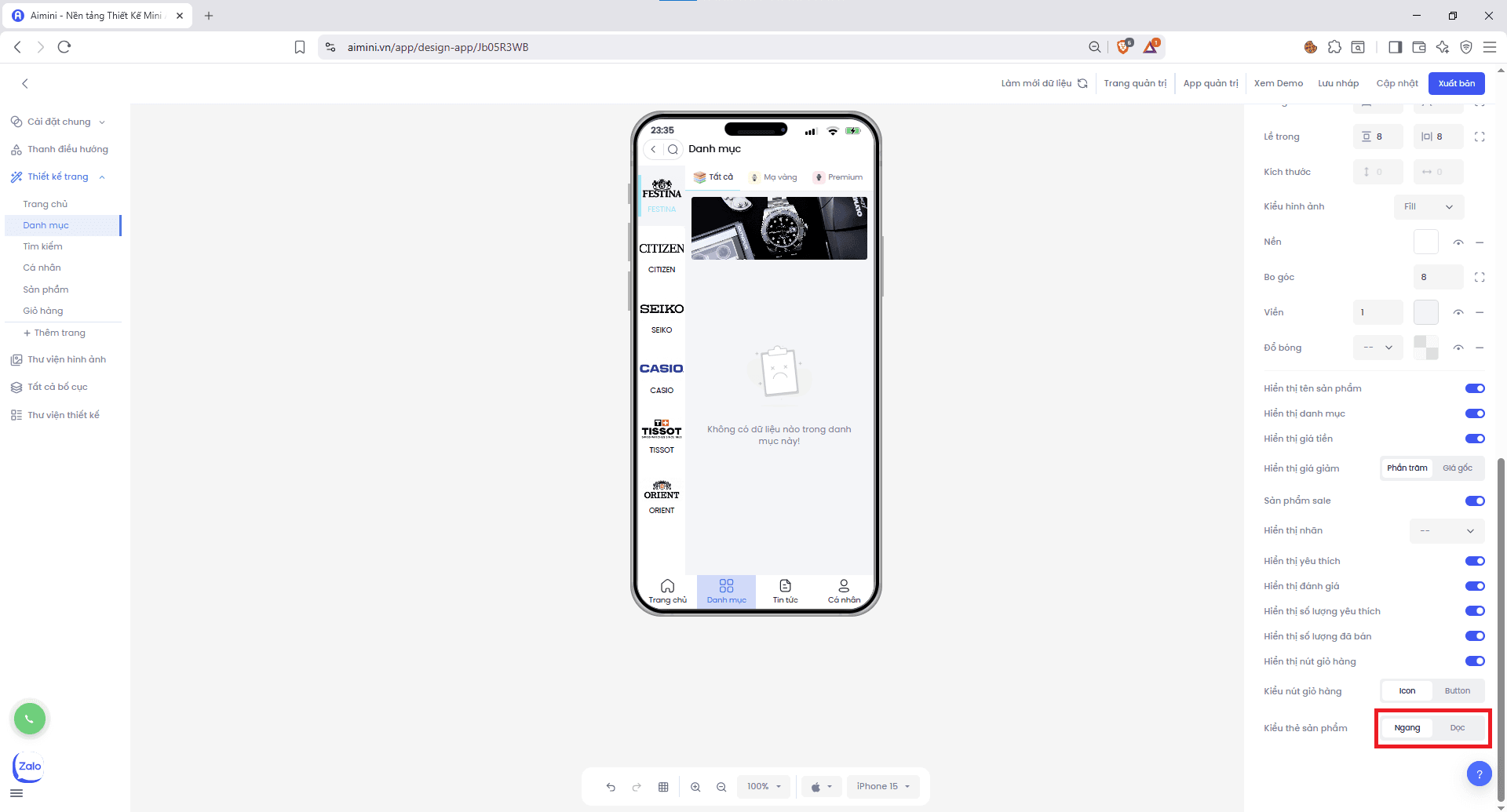
 **Kiểu thẻ sản phẩm:**
* Người dùng có thể chọn chuyển đổi hiển thị sản phẩm giữa ngang hoặc dọc
**Kiểu thẻ sản phẩm:**
* Người dùng có thể chọn chuyển đổi hiển thị sản phẩm giữa ngang hoặc dọc