> ## Documentation Index
> Fetch the complete documentation index at: https://docs.appminis.io/llms.txt
> Use this file to discover all available pages before exploring further.
# CTA
> Hướng dẫn tùy chỉnh component CTA: bật/tắt tiêu đề, các nút (Quan tâm OA, Liên hệ), và cài đặt phong cách.
### **4.2.5. CTA**
**Tổng quan**
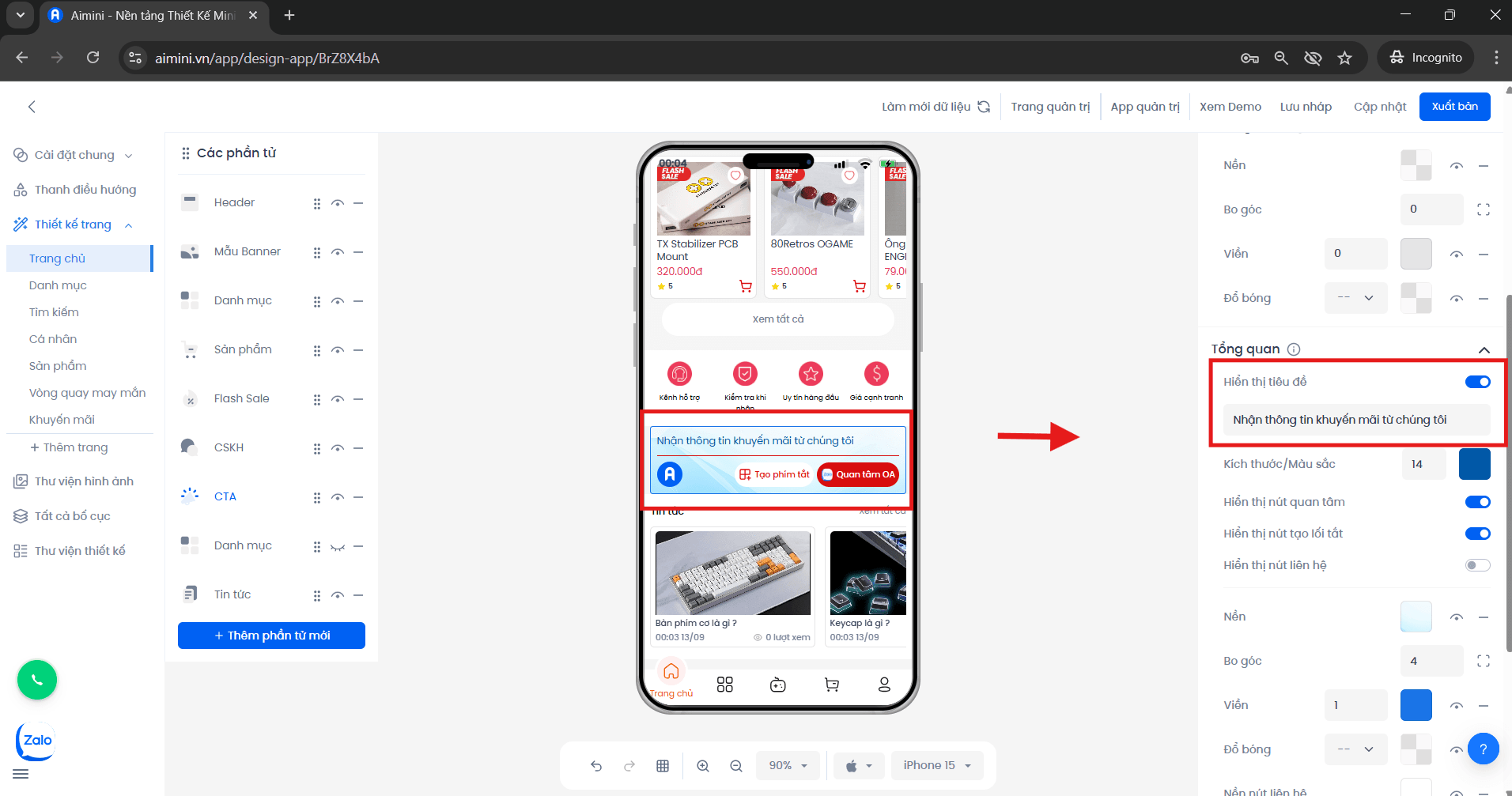
* **Hiển thị tiêu đề:**
* Người dùng nhấn nút để chuyển đổi qua lại giữa 2 trạng thái có tiêu đề và không có tiêu đề, ngoài ra người dùng có thể nhập tiêu đề cho phần CTA. Ví dụ, nếu tiêu đề là "**Nhận thông tin khuyến mãi từ chúng tôi**" thì phần CTA sẽ như thế này
 * **Kích thước/Màu sắc:**
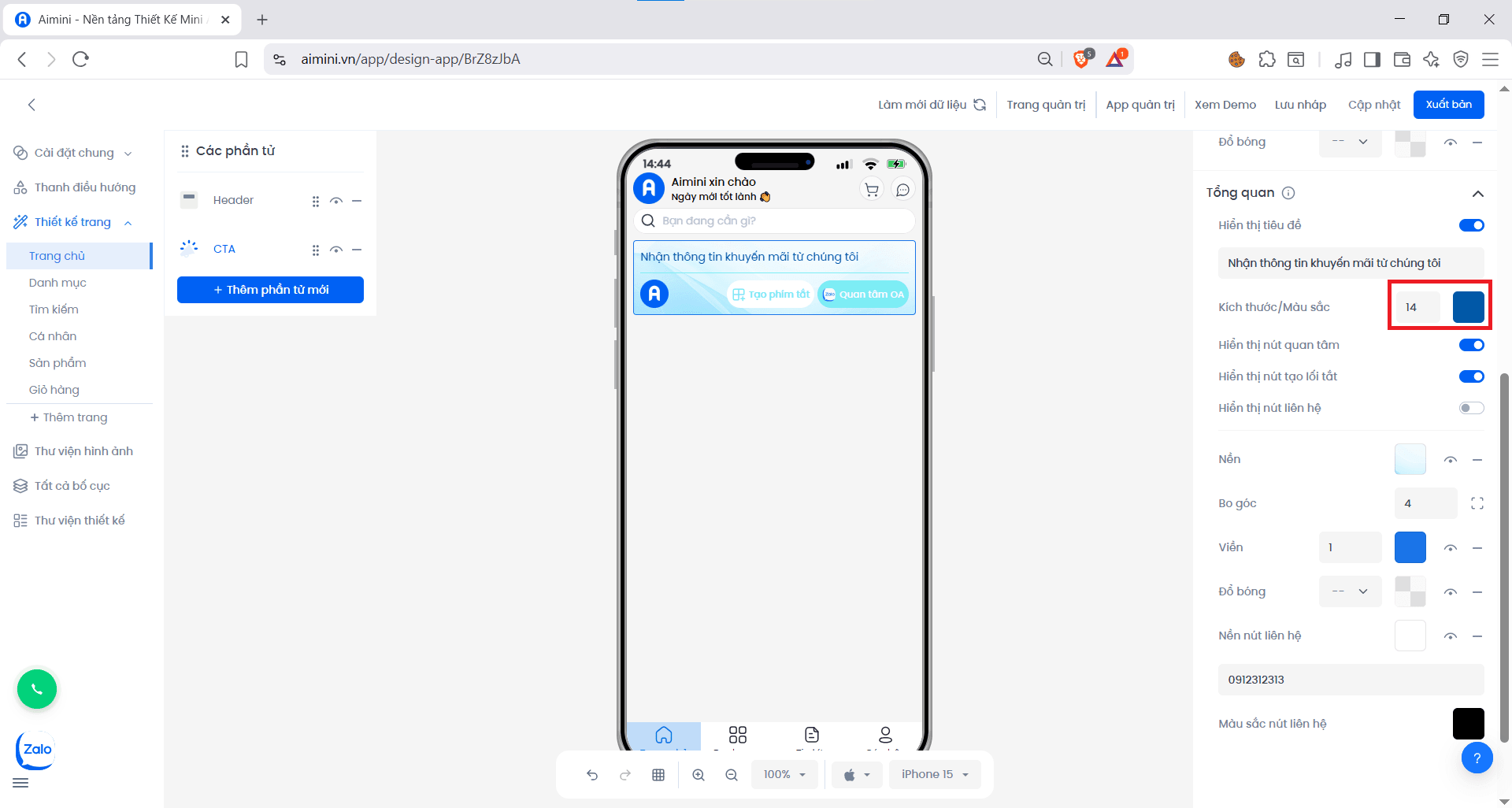
* Người dùng có thể điều chỉnh kích thước và màu sắc cho tiêu đề của phần CTA tại
* **Kích thước/Màu sắc:**
* Người dùng có thể điều chỉnh kích thước và màu sắc cho tiêu đề của phần CTA tại
 * **Hiển thị nút quan tâm:**
* Người dùng nhấn nút để chuyển đổi qua lại giữa 2 trạng thái có nút quan tâm OA và không có nút quan tâm OA
* **Hiển thị nút tạo lối tắt:**
* Người dùng nhấn nút để chuyển đổi qua lại giữa 2 trạng thái có nút tạo lối tắt và không có nút tạo lối tắt
* **Hiển thị nút liên hệ:** Người dùng nhấn nút để chuyển đổi qua lại giữa 2 trạng thái có nút liên hệ và không có nút liên hệ
* **Nền**
* Chọn màu nền cho các thẻ bằng cách nhấn ô vuông sau đó chọn màu
* **Hiển thị nút quan tâm:**
* Người dùng nhấn nút để chuyển đổi qua lại giữa 2 trạng thái có nút quan tâm OA và không có nút quan tâm OA
* **Hiển thị nút tạo lối tắt:**
* Người dùng nhấn nút để chuyển đổi qua lại giữa 2 trạng thái có nút tạo lối tắt và không có nút tạo lối tắt
* **Hiển thị nút liên hệ:** Người dùng nhấn nút để chuyển đổi qua lại giữa 2 trạng thái có nút liên hệ và không có nút liên hệ
* **Nền**
* Chọn màu nền cho các thẻ bằng cách nhấn ô vuông sau đó chọn màu
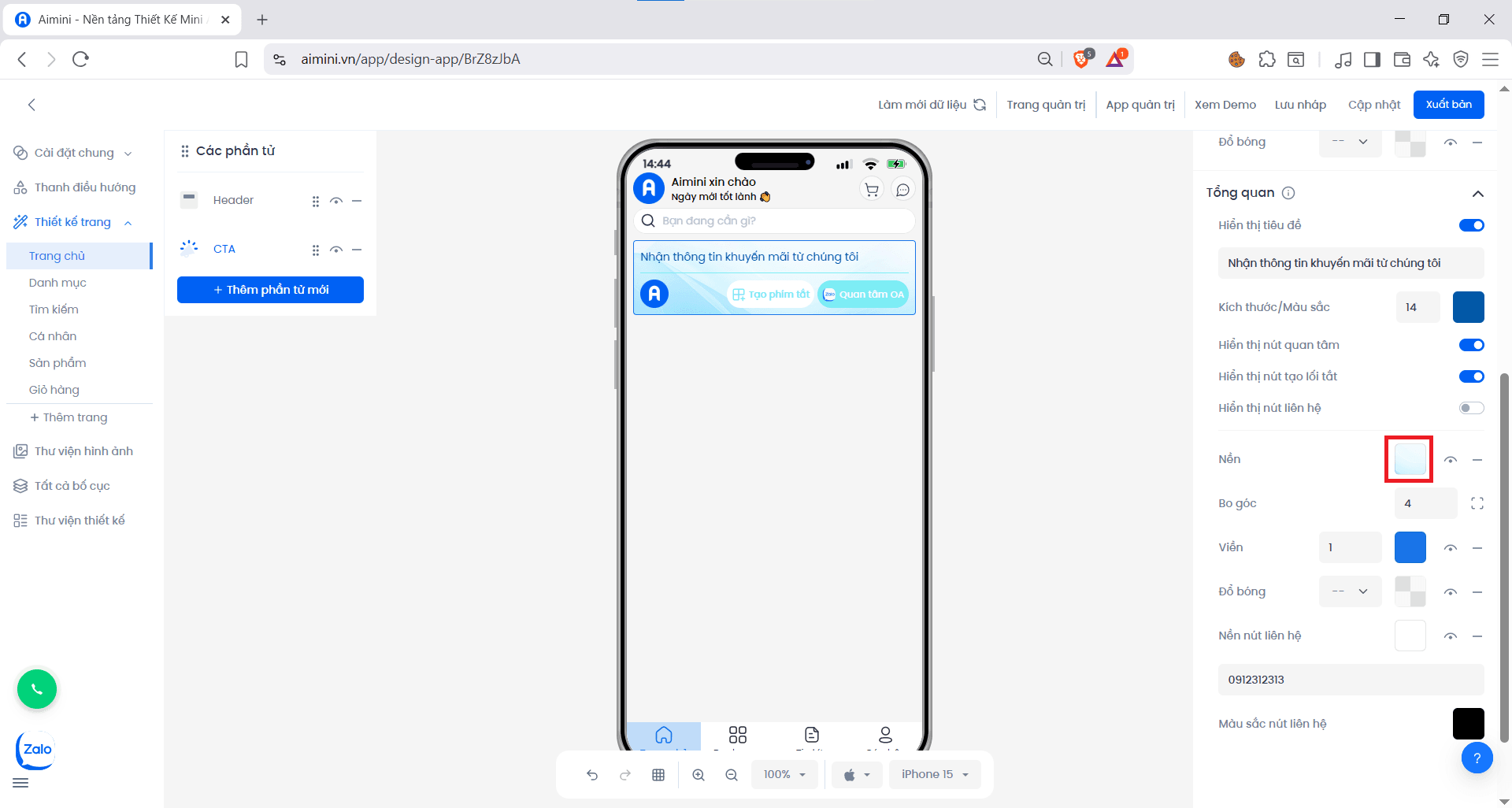 * Chuyển đổi qua lại giữa 2 trạng thái có màu nền và không có màu nền bằng cách nhấn nút
* Xóa màu nền bằng cách nhấn nút
* **Bo góc**
* Người dùng có thể nhập hoặc tăng/giảm chung độ bo góc của 4 góc của các thẻ tại ô nhập
* Chuyển đổi qua lại giữa 2 trạng thái có màu nền và không có màu nền bằng cách nhấn nút
* Xóa màu nền bằng cách nhấn nút
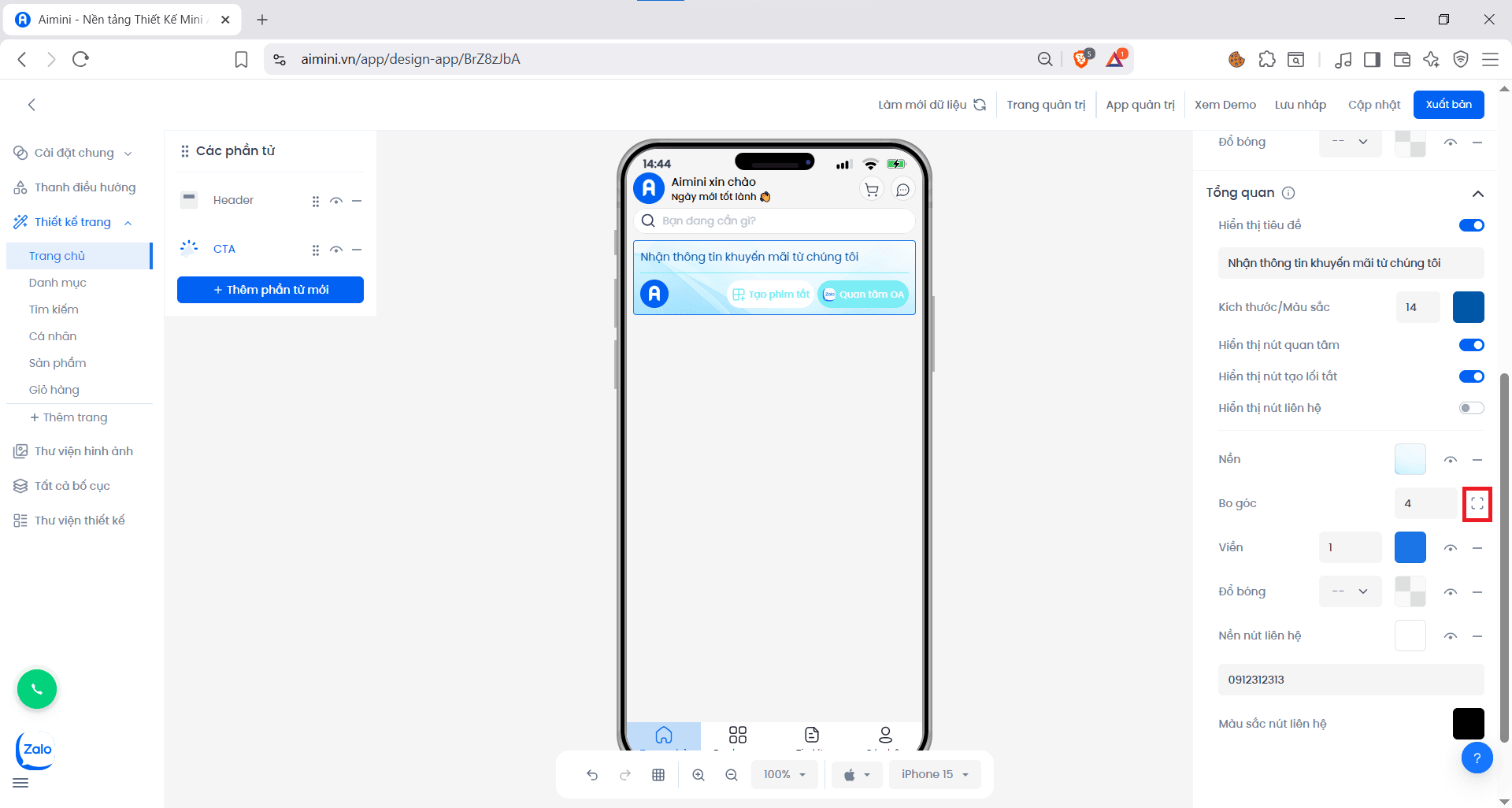
* **Bo góc**
* Người dùng có thể nhập hoặc tăng/giảm chung độ bo góc của 4 góc của các thẻ tại ô nhập
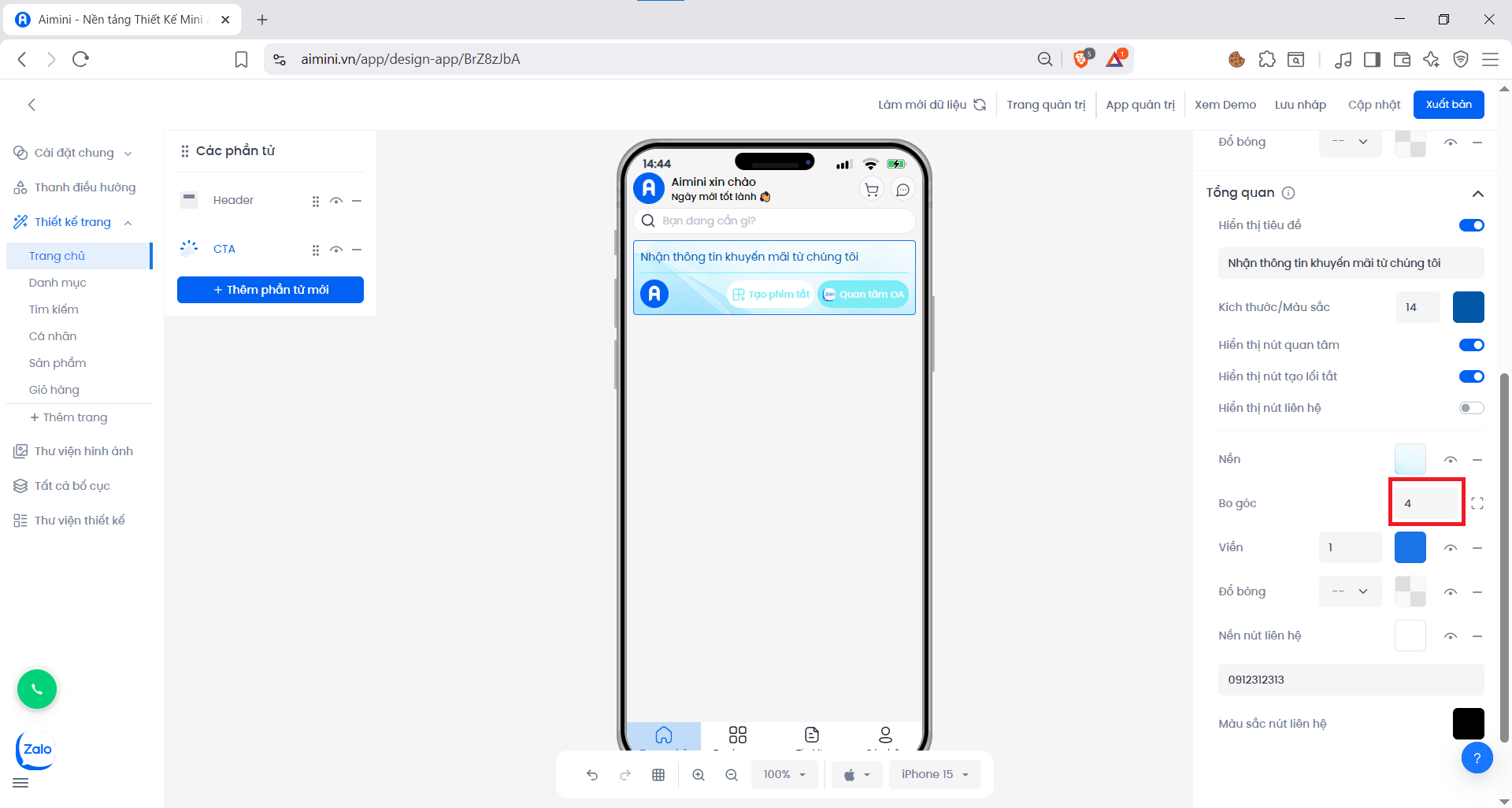 hoặc điềù chỉnh riêng lẻ độ bo góc của từng góc bằng cách nhấn nút
 * **Viền**
* Người dùng có thể nhập hoặc tăng/giảm chung độ lớn viền của các thẻ tại ô nhập
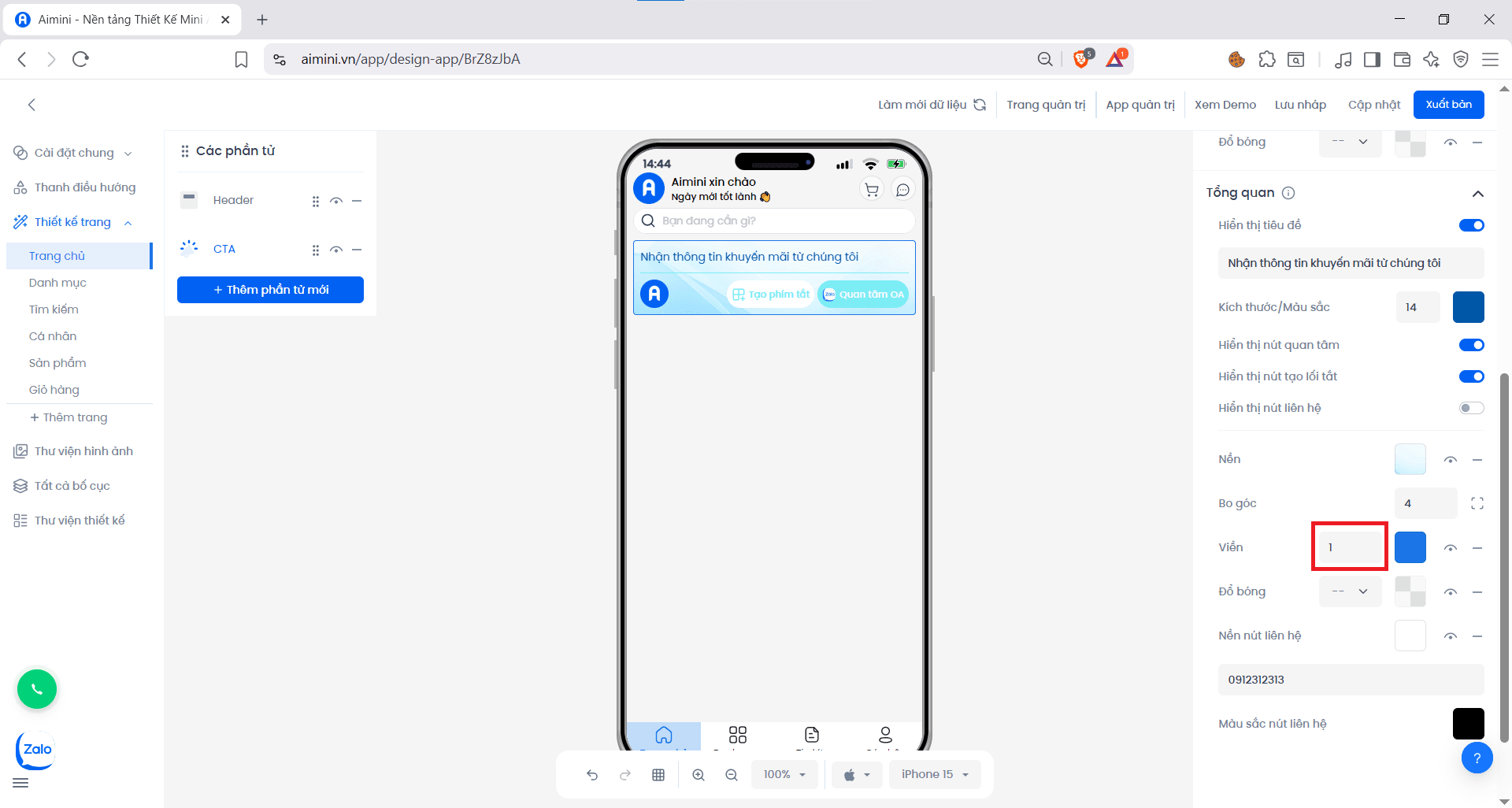
* **Viền**
* Người dùng có thể nhập hoặc tăng/giảm chung độ lớn viền của các thẻ tại ô nhập
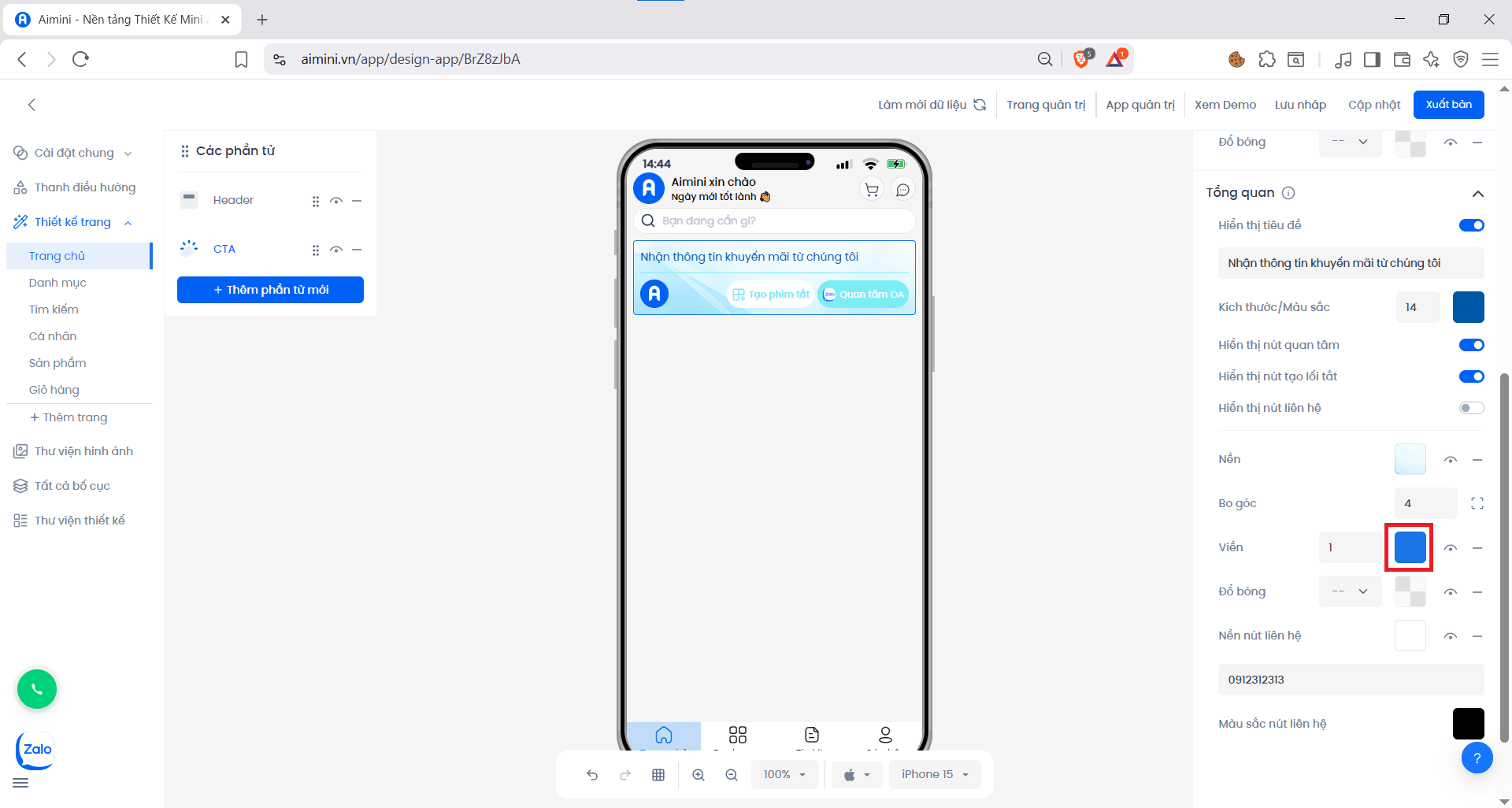
 * Chọn màu cho viền bằng cách nhấn ô vuông sau đó chọn màu
 * Chuyển đổi qua lại giữa 2 trạng thái có viền và không viền bằng cách nhấn nút
* Xóa viền bằng cách nhấn nút
* **Đổ bóng**
* Người dùng có thể chọn độ lớn đổ bóng của các thẻ tại ô
* Chuyển đổi qua lại giữa 2 trạng thái có viền và không viền bằng cách nhấn nút
* Xóa viền bằng cách nhấn nút
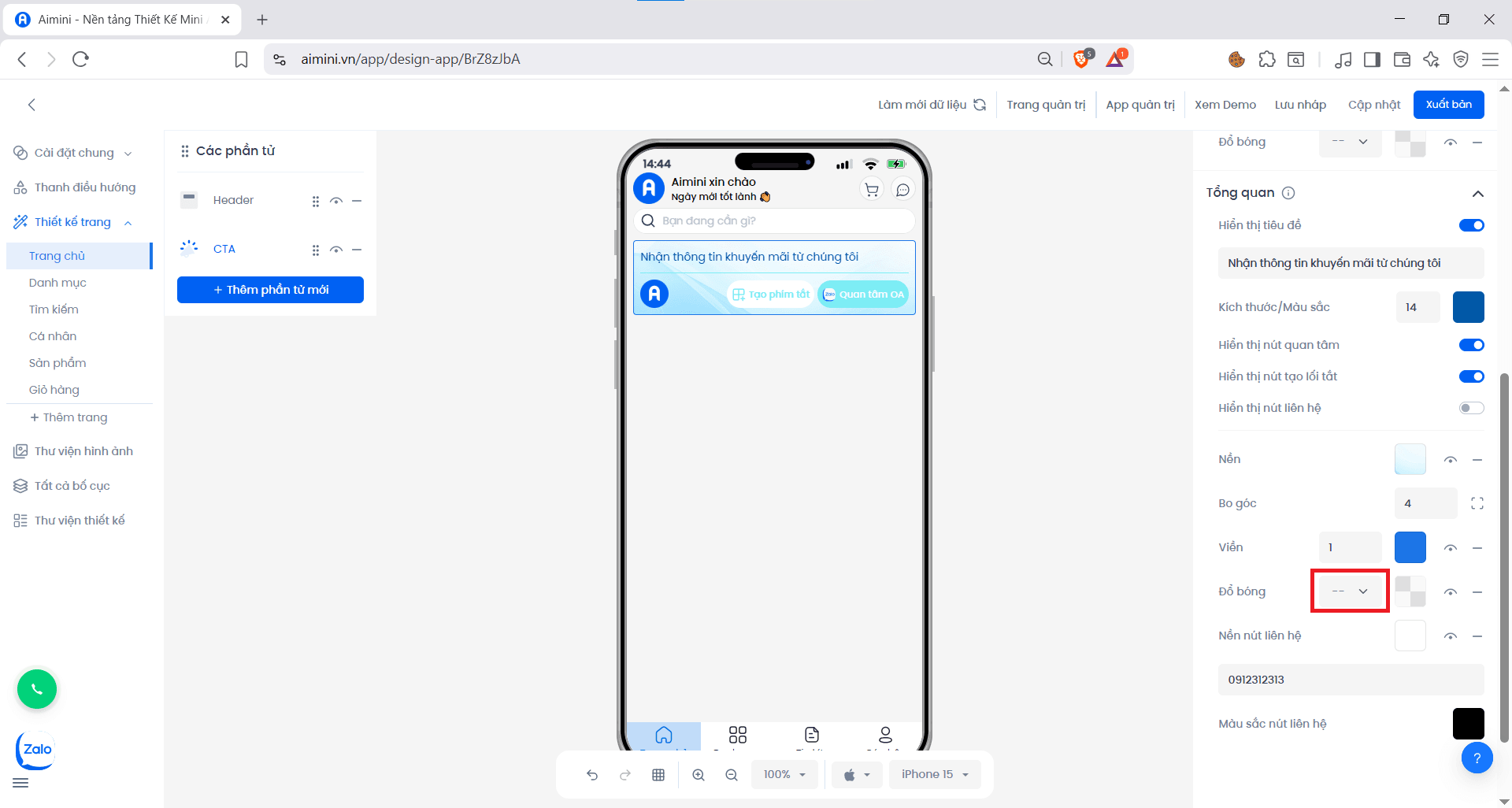
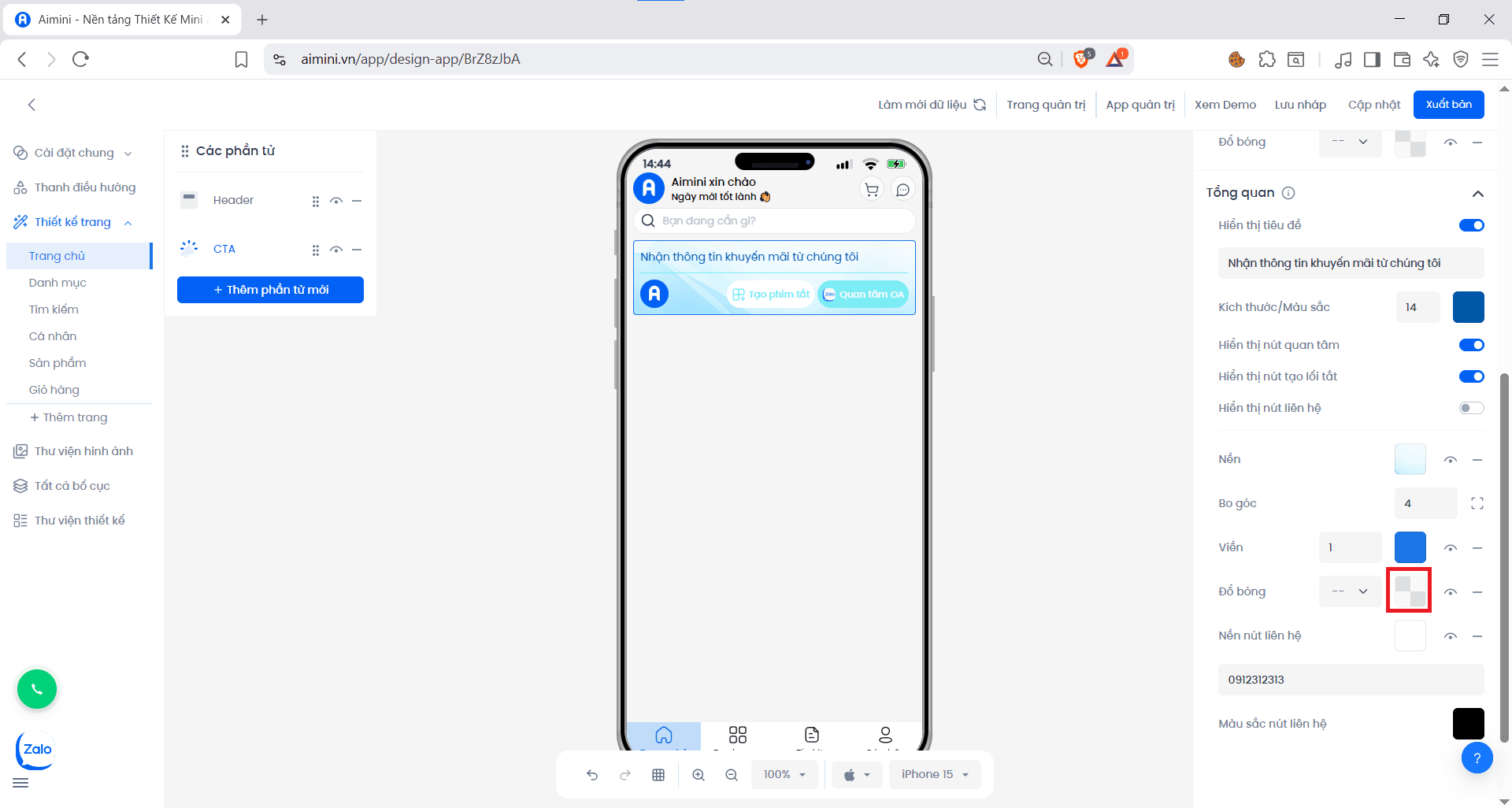
* **Đổ bóng**
* Người dùng có thể chọn độ lớn đổ bóng của các thẻ tại ô
 * Chọn màu cho đổ bóng bằng cách nhấn ô vuông sau đó chọn màu
 * Chuyển đổi qua lại giữa 2 trạng thái có đổ bóng và không đổ bóng bằng cách nhấn nút
* Xóa đồ bóng bằng cách nhấn nút
* Chuyển đổi qua lại giữa 2 trạng thái có đổ bóng và không đổ bóng bằng cách nhấn nút
* Xóa đồ bóng bằng cách nhấn nút